User Guide
Dashboard
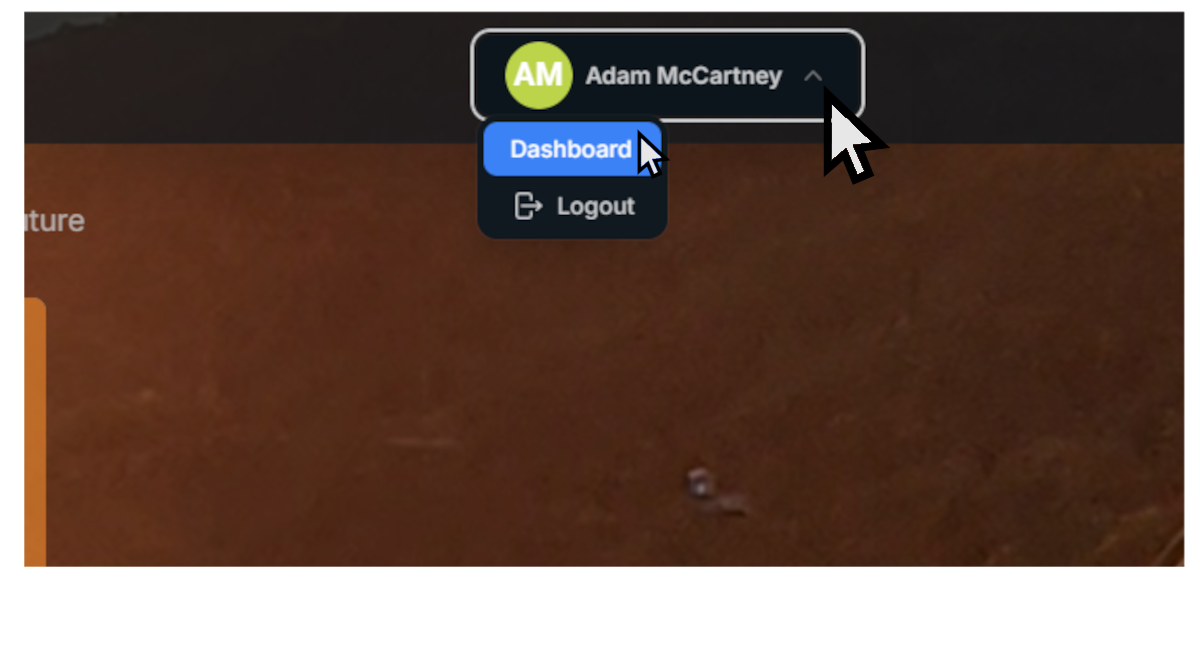
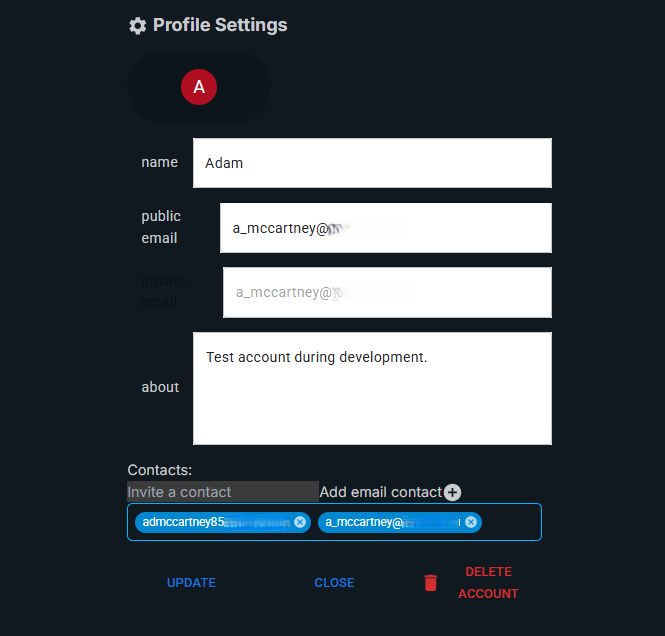
Profile Settings
Profile settings allows you to edit your public name, public email and write a short about section. You can also manage your contacts, which are other users you want to join your workspace. Contacts can be added by email, initially new users will be invited to sign up but you can add them as members of your workspace and they will receive an invite to accept once they log in. You can also remove contacts if you no longer wish to collaborate with them.
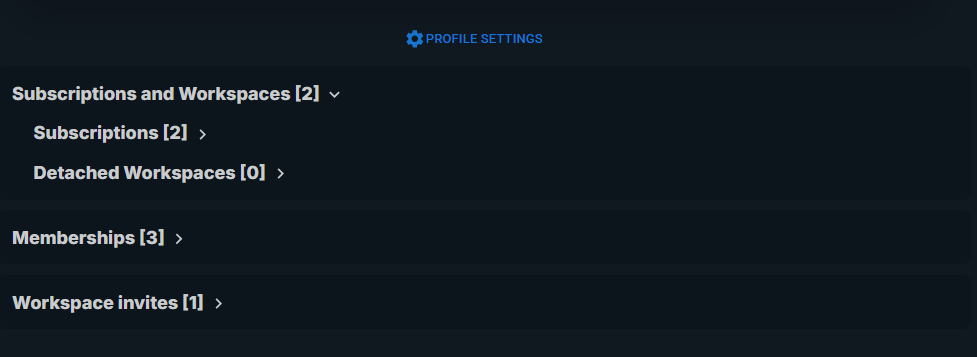
Subscriptions
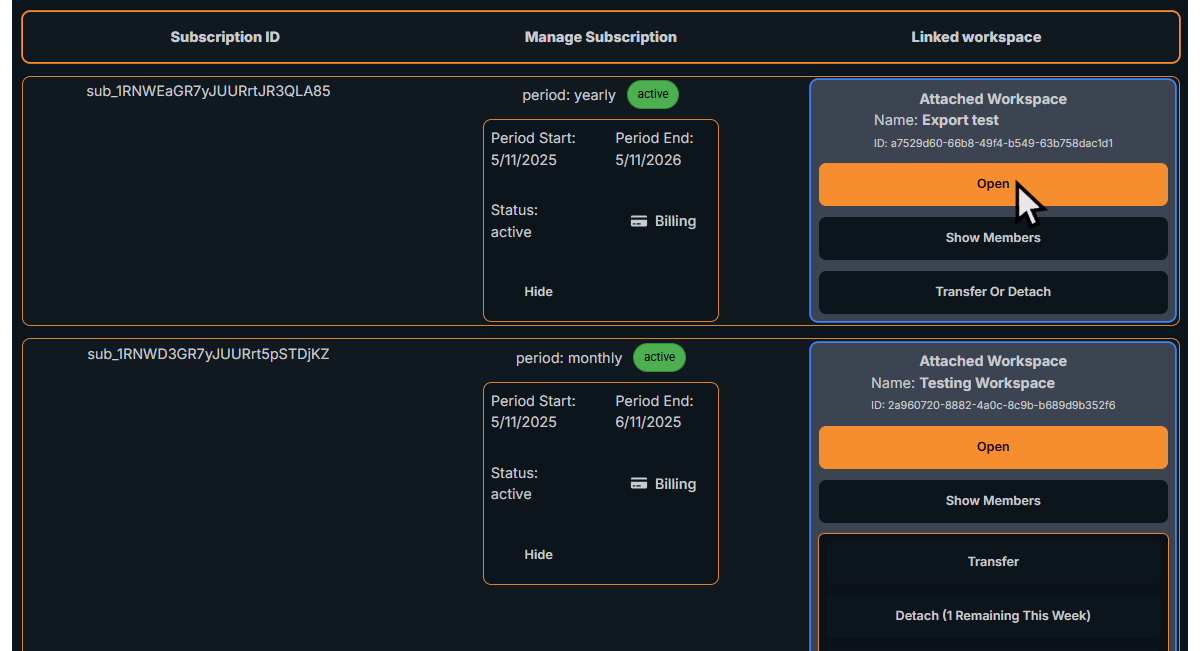
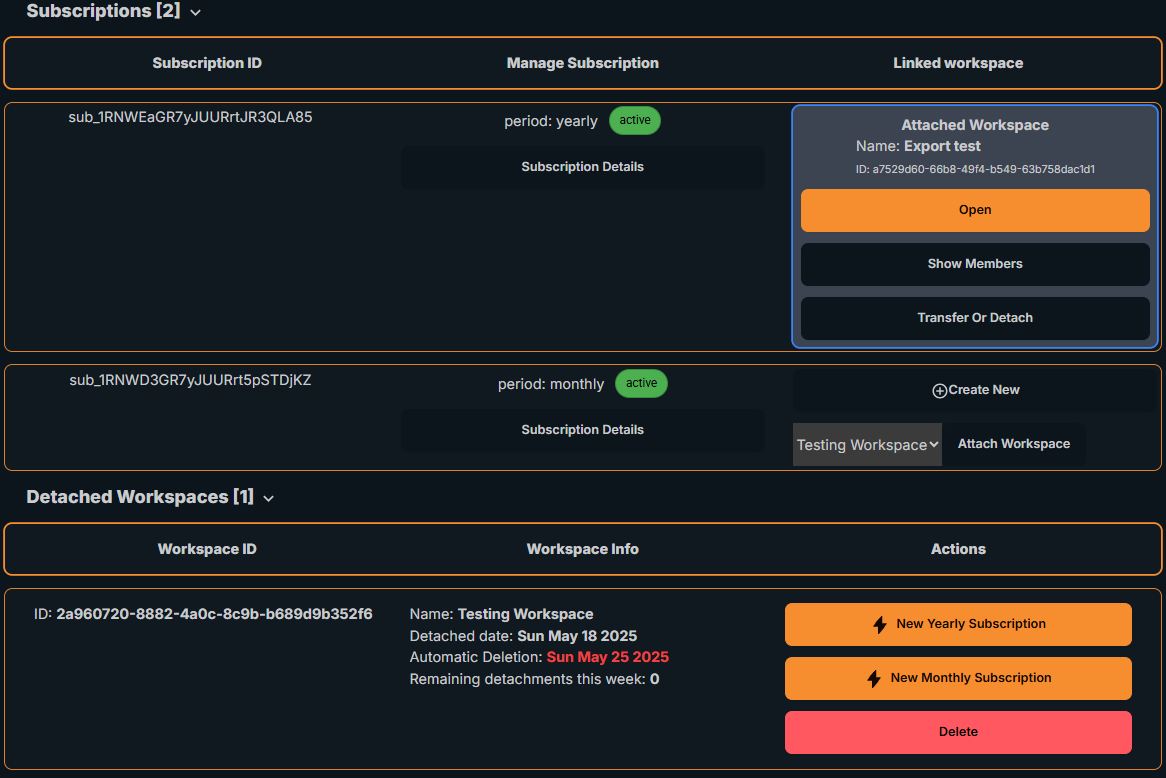
Subscriptions allow you to create and manage a workspace. Workspaces may be transferred, detached and deleted without impacting your subscription. You can create a new workspace so long as you don't have too many existing workspaces in the detached state associated with your account. You can view your subscription status, manage billing, and attach or detach workspaces as needed.
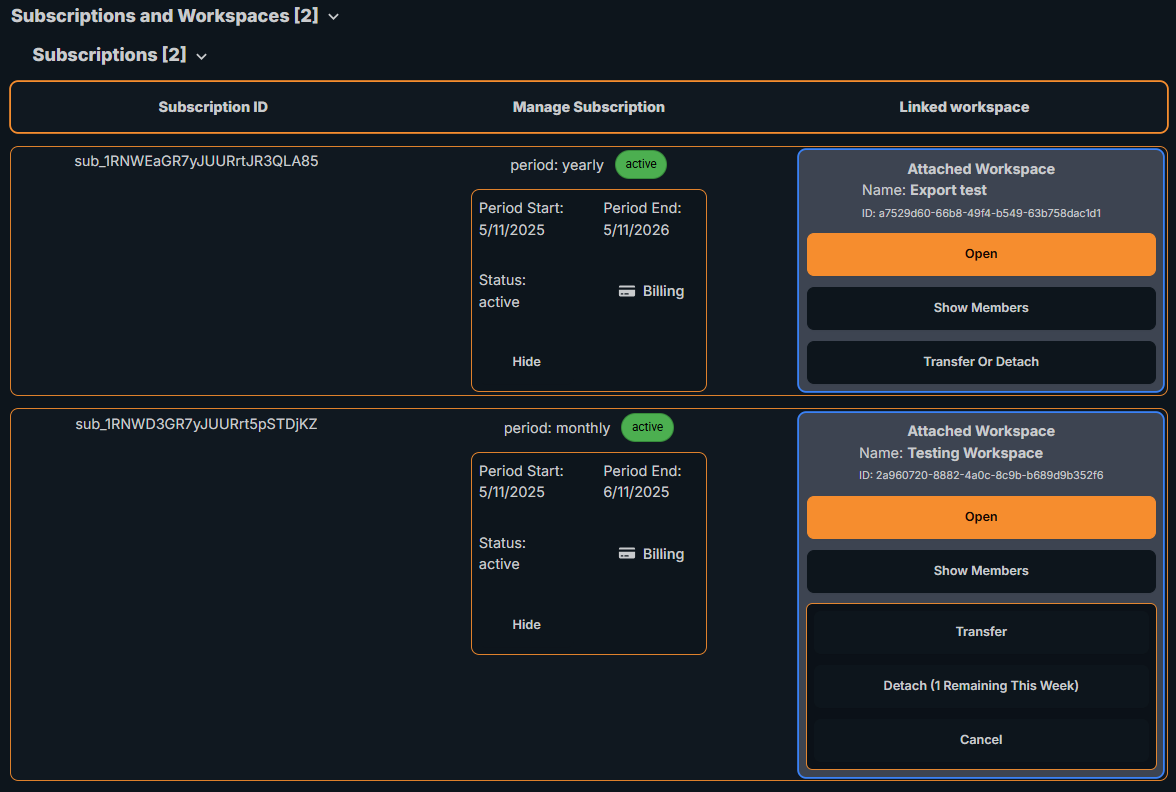
Workspaces
Workspaces can be created via a subscription, a workspace must be associated with a valid subscription to interact with it. From the Dashboard page, under Subscriptions when a workspace is linked to a subscription you can invite users from your contacts (manage your contacts under Profile Settings) to join your workspace as a member, transfer ownership or detach the workspace. Detached workspaces can be reattached to a different subscription or deleted, a detached workspace will be automatically deleted after 7 days. Workspaces are collaborative spaces where you and your team can design the layout and allocate tasks.
Memberships
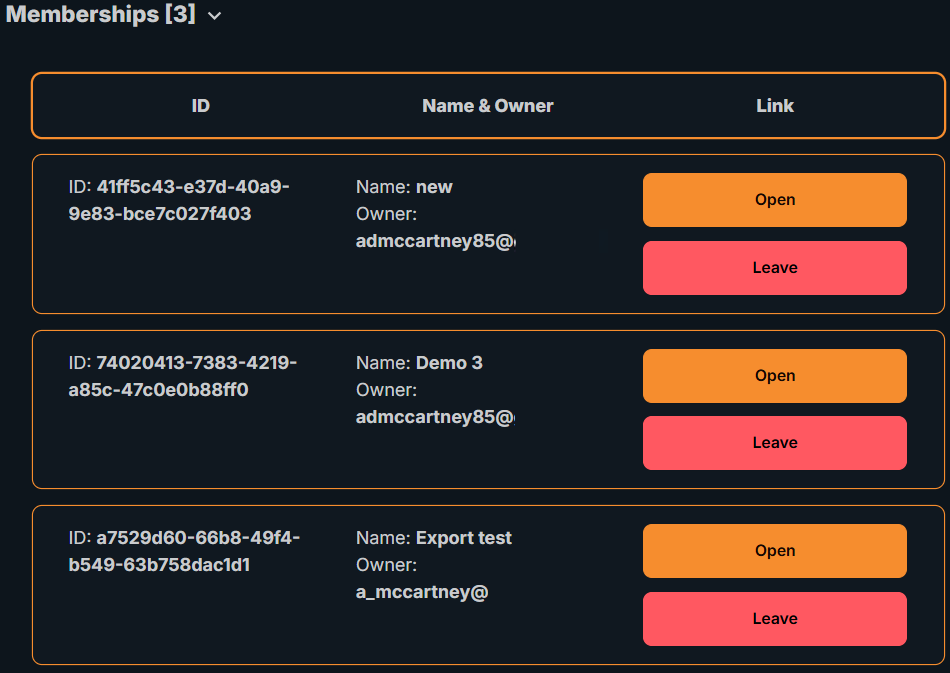
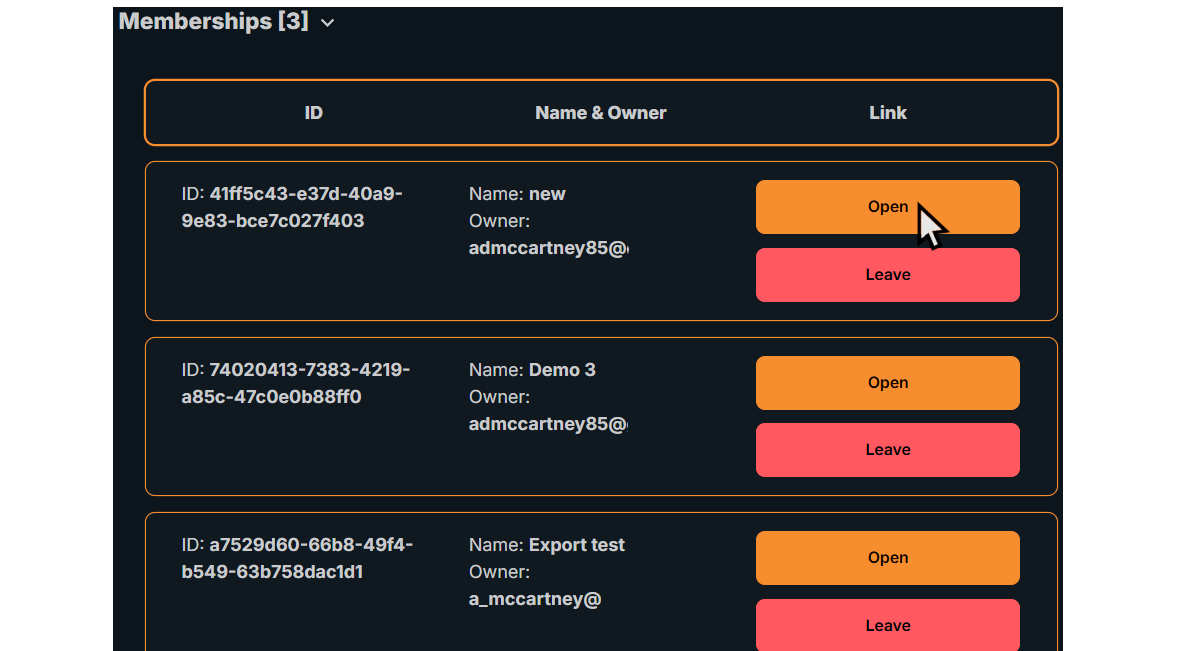
Memberships show the workspaces you are a member of. From this menu you can see some basic information about the workspace, Open the workspace or leave the workspace.
Invites
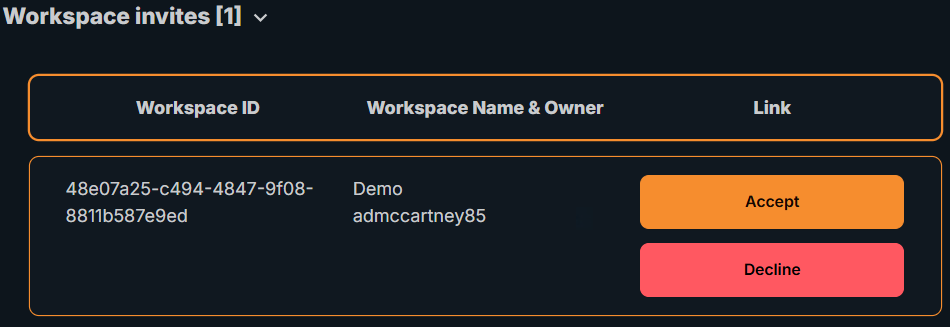
Invites allow you to join new workspaces. When you receive an invite, you can accept to join the workspace or decline if you are not interested.
Workspace
Locking
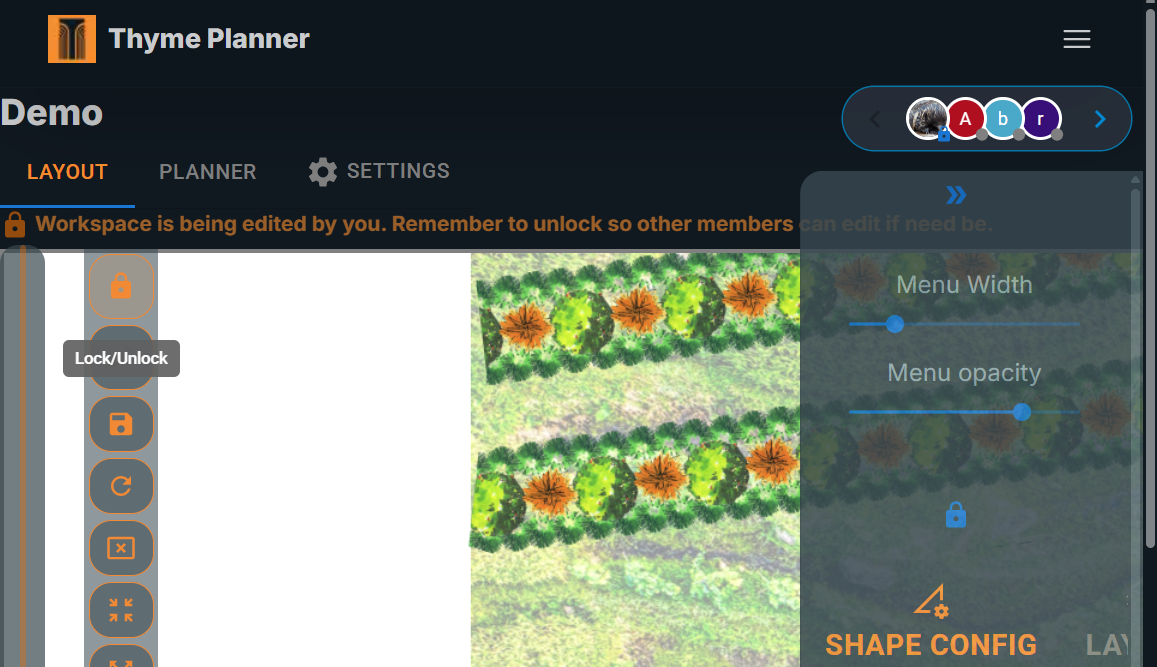
Locking the workspace prevents other users from making changes to the Layout while you are editing it. This is useful for ensuring that your changes are not overwritten by others. When you lock the workspace, a notification will be sent to other users, and they will be unable to edit the Layout until you unlock it.
Layout
The Layout is the main area for visual planning and spatial orientation. You can add, move, and organize shapes and lines to represent trees, crops, syntropic patterns, water courses, and other features of the landscape. Only one user is able to actively edit the Layout at a time; this is to prevent conflicts and ensure that changes are made in a controlled manner. However, all users can view the Layout in real-time.
Layers
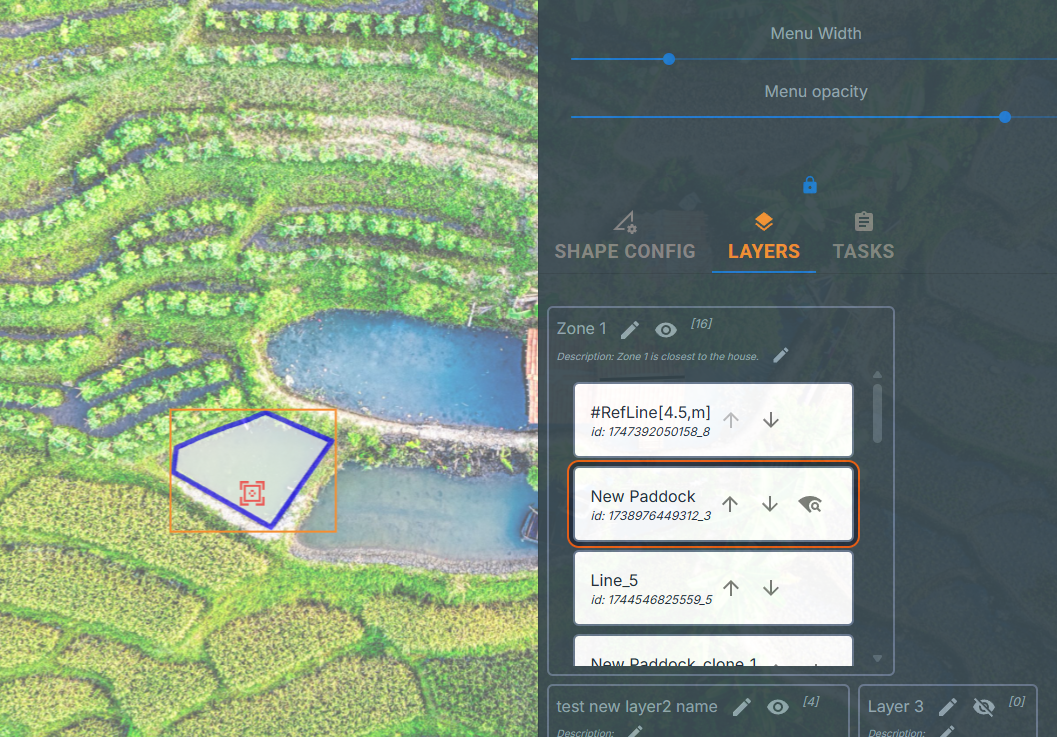
Layers help you organize different elements in the Layout, making it easier to manage complex layouts.
Editing
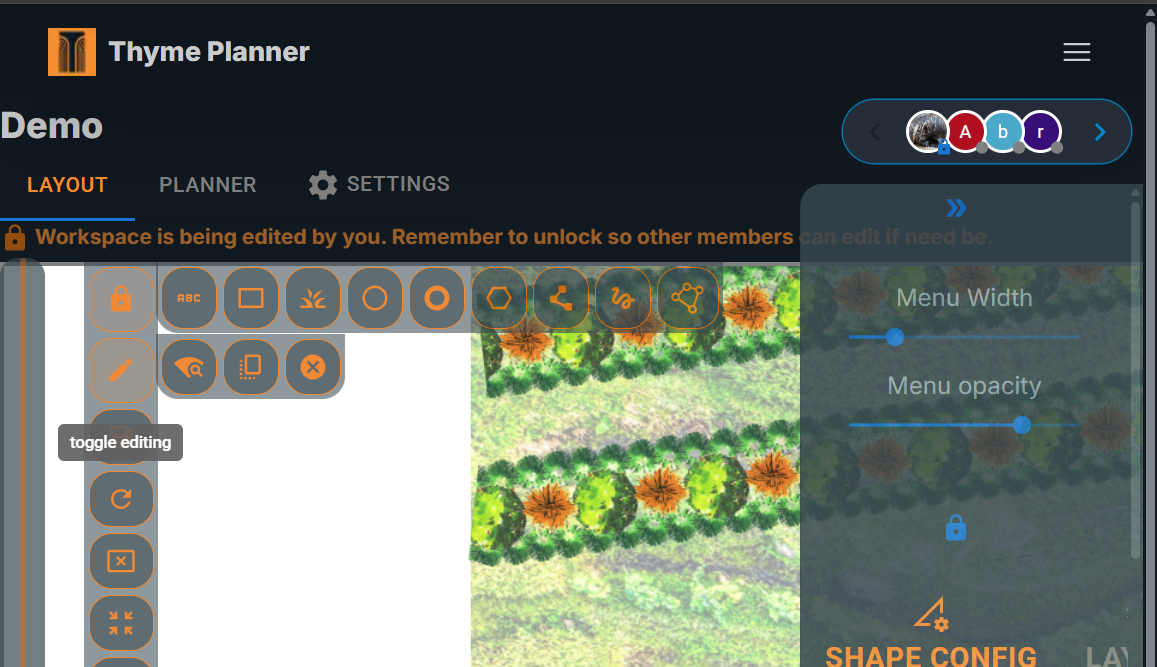
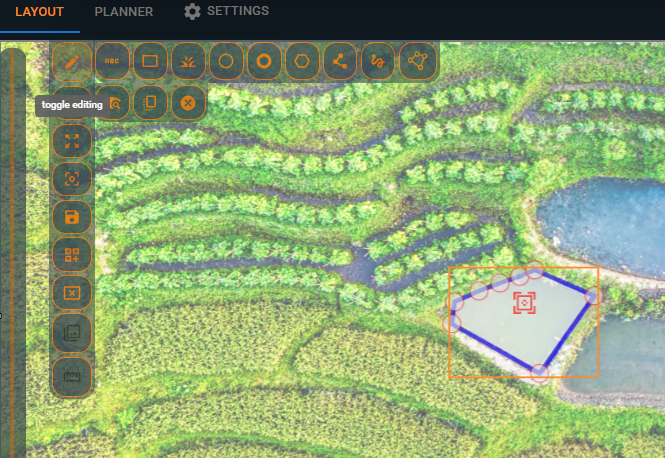
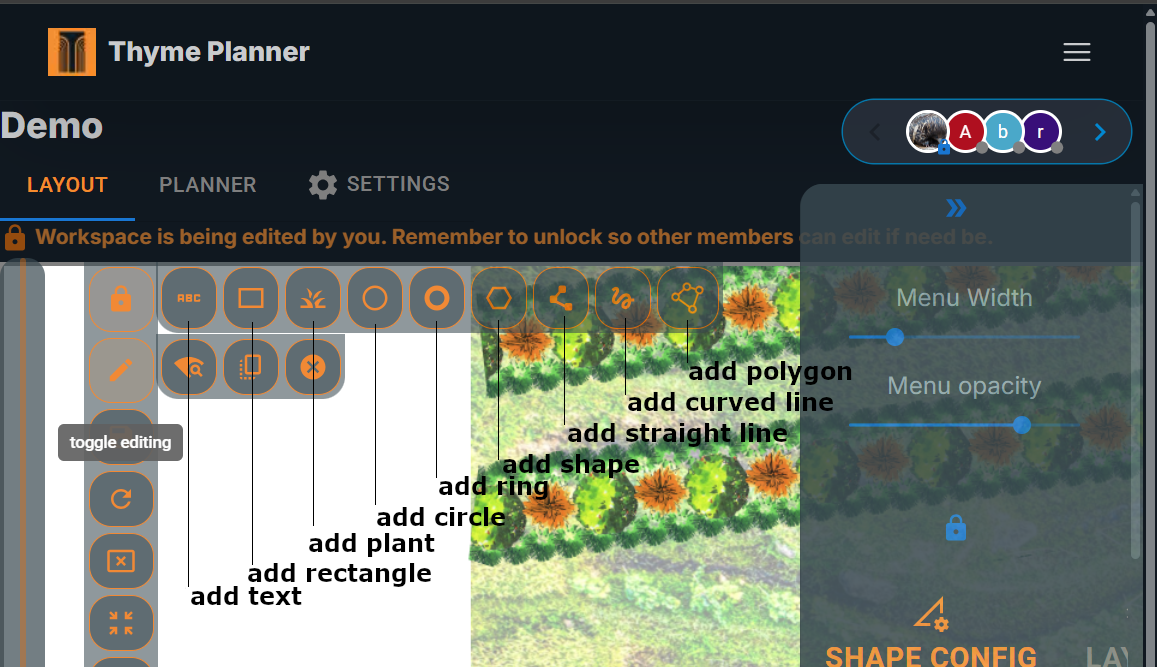
Shapes and Lines can be edited by toggling the edit mode. You can add, remove, or modify shapes and lines to suit your needs.
Text
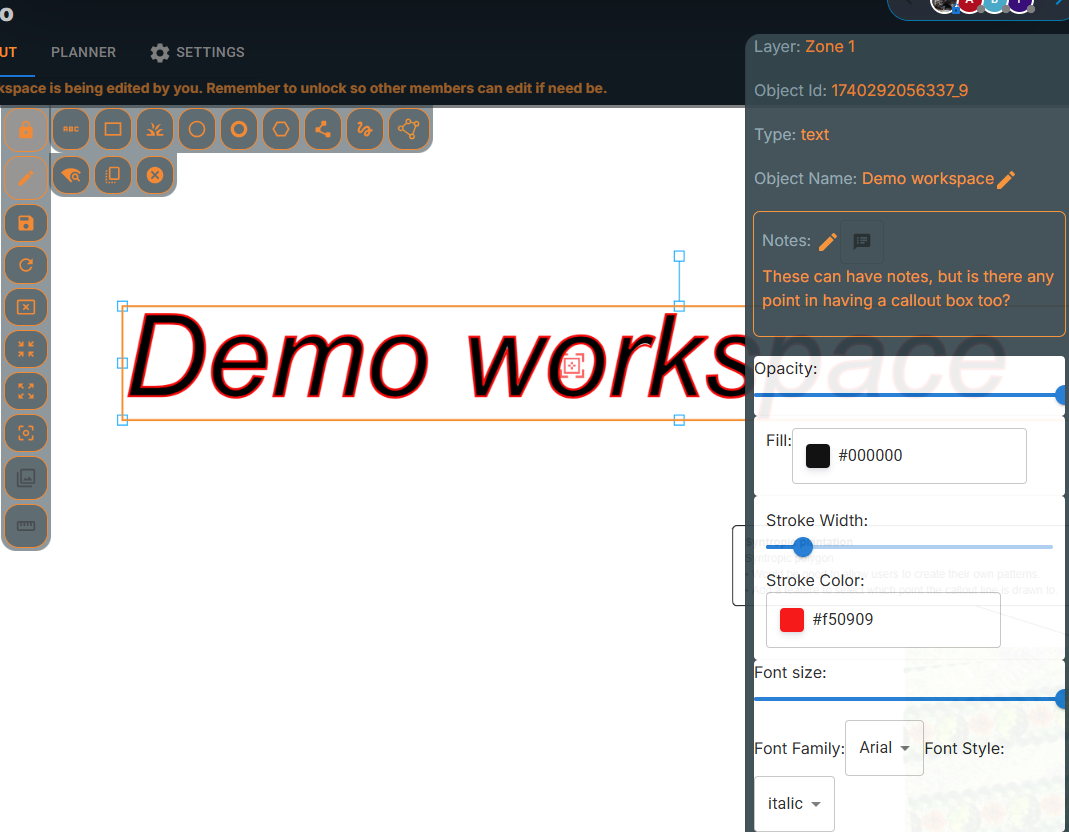
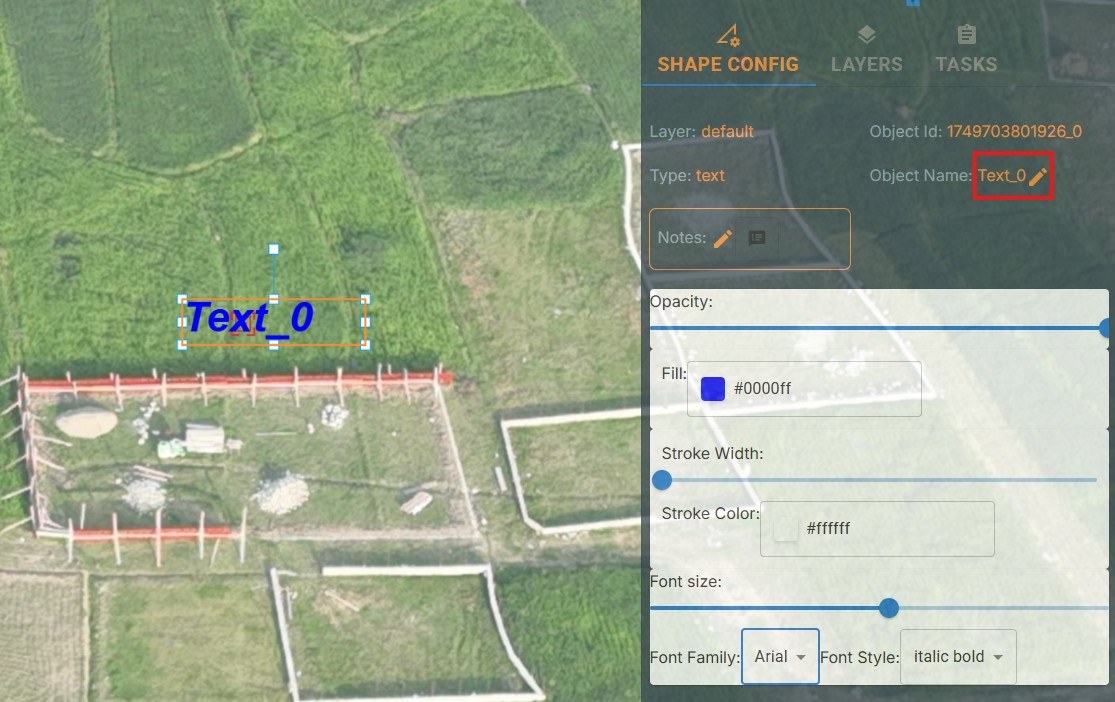
Text can be added to the Layout for annotations or labels. The content is controlled by changing the name of the object in the configuration panel.
Shapes & Lines
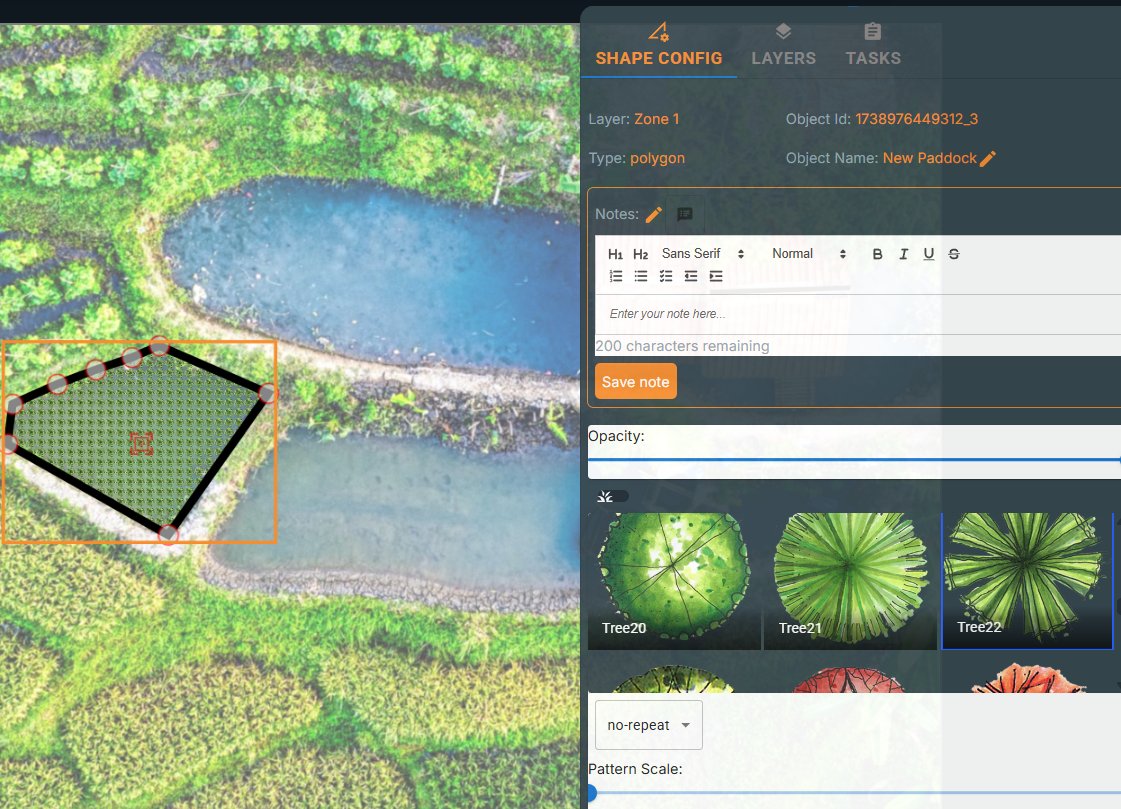
Shapes and lines are the building blocks of your Layout.
Tasks
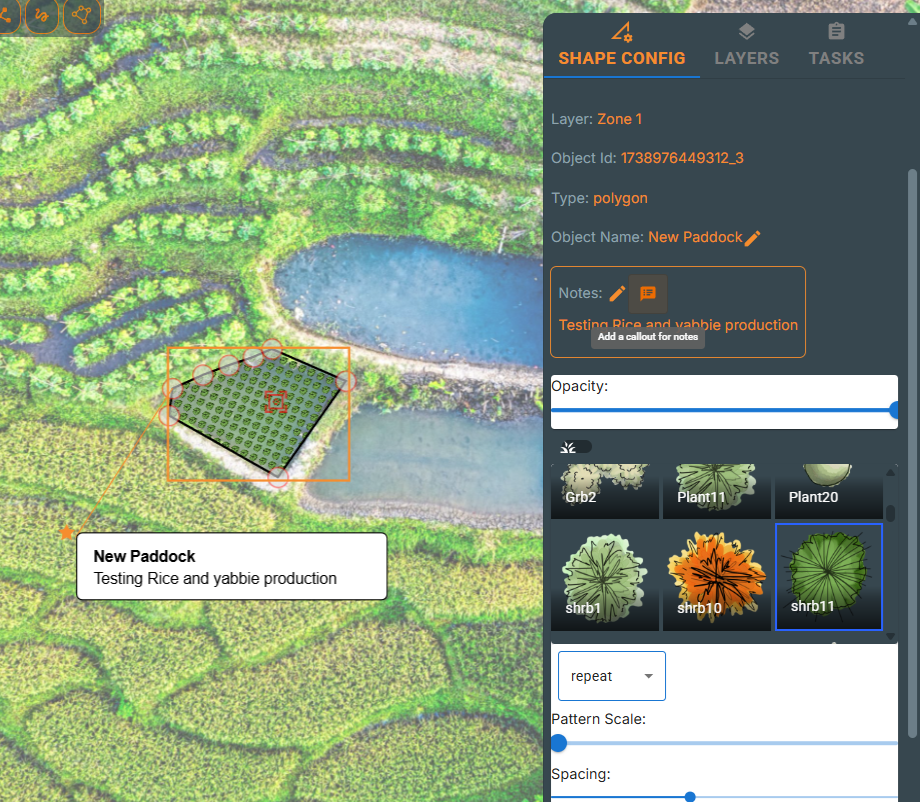
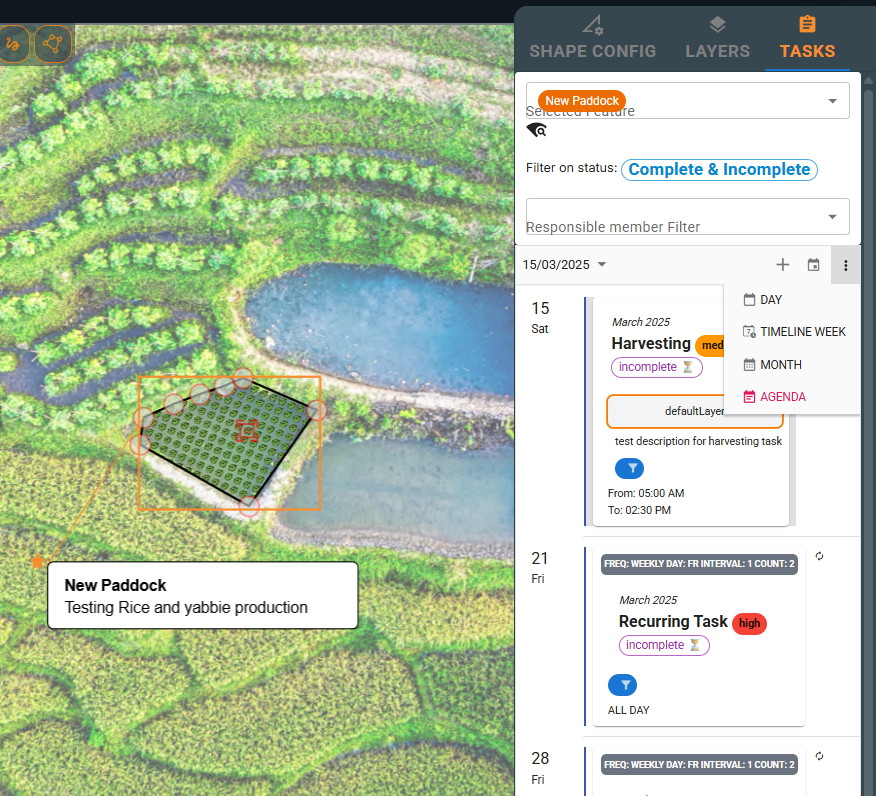
Tasks can be attached to shapes, lines, layers, or the workspace. This allows you to assign specific actions or responsibilities to different elements in your layout. These tasks are linked to the Planner component of the Workspace but are available in the Layout view for quick reference and the ability to zoom to an associated feature.
Measurement
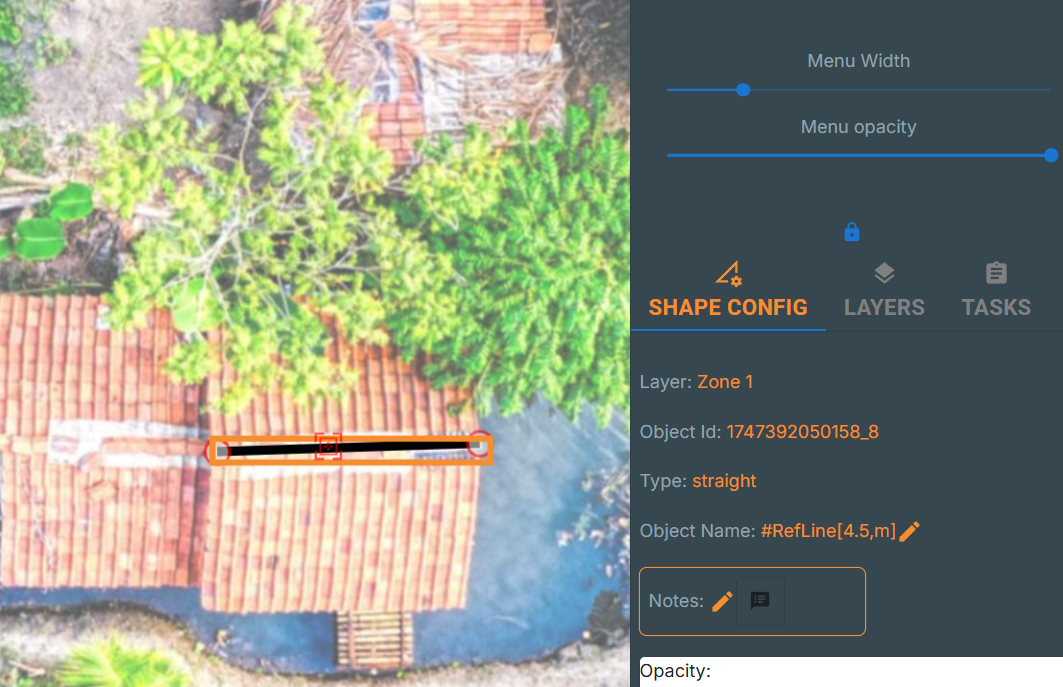
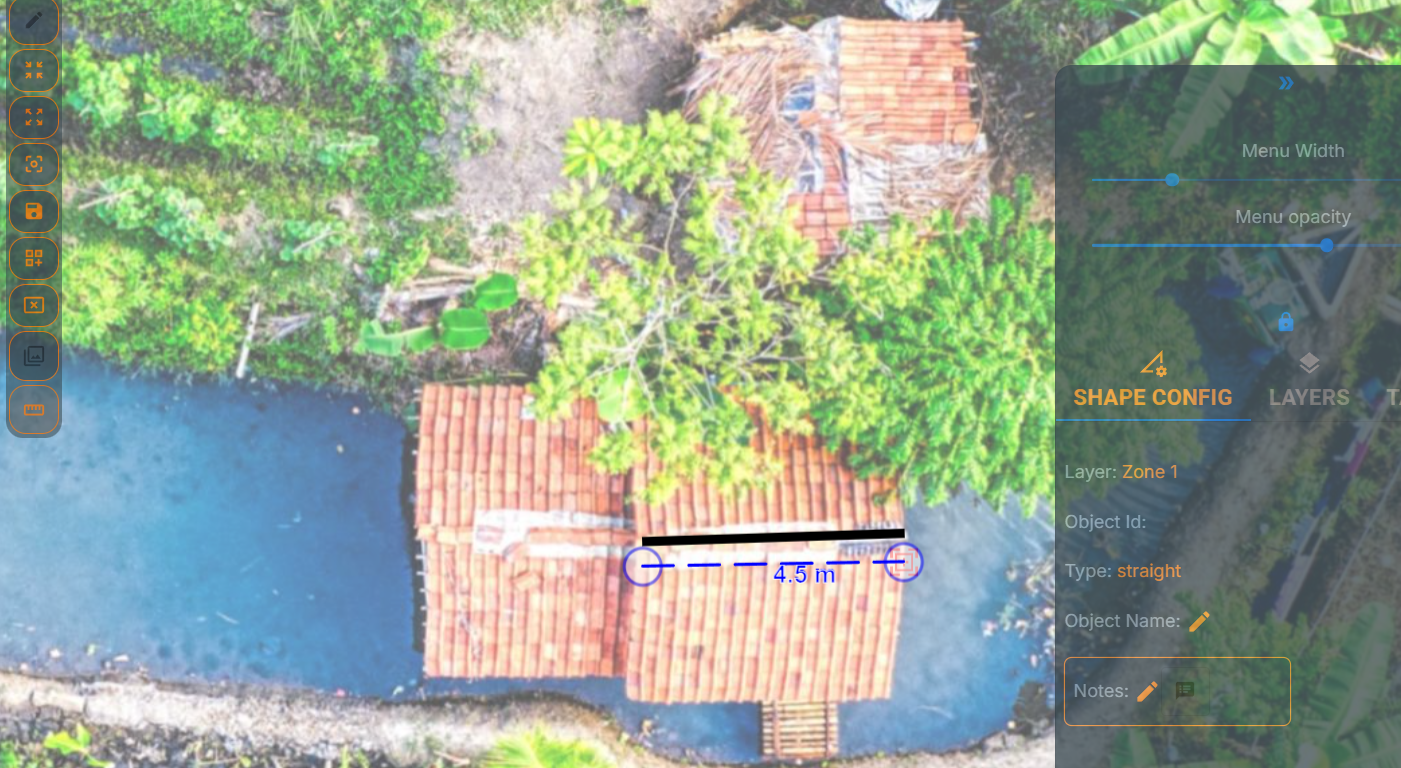
Rough measurements can be taken of the distance between two points by first toggling the measurement tool and then clicking between the two points within the layout. Before using the measuring tool, calibrate measurements by drawing a straight line along an object of known length; edit the name of this line to be #RefLine[known_length,units] as shown in the below image. The measurement tool will then use this line as a reference for all future measurements.
Planner
The Planner component provides a calendar and agenda view for managing tasks and scheduling events within your workspace.
Agenda
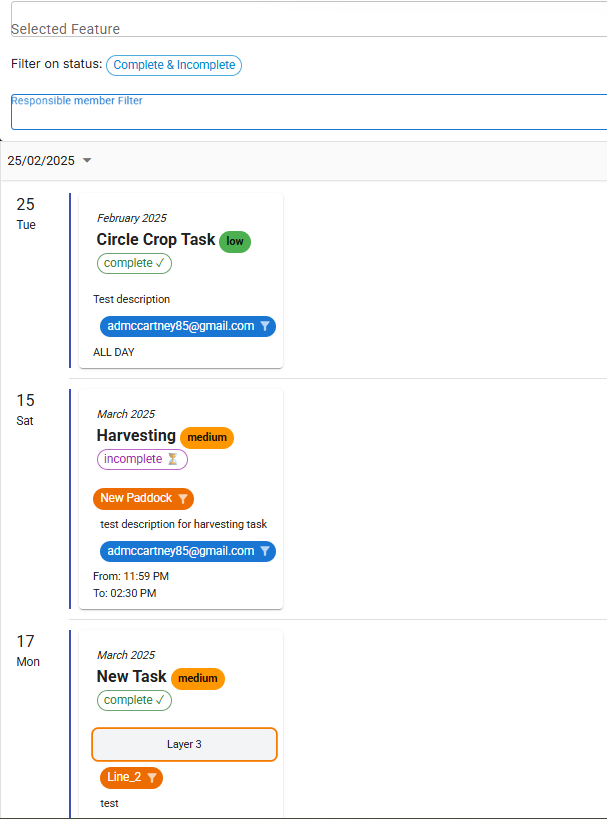
The Agenda view allows you to see tasks and events in a list format, making it easy to track deadlines and upcoming activities. It shows all tasks as a list sorted by date and can be filtered by status, responsible person, and associated feature.
Calendar
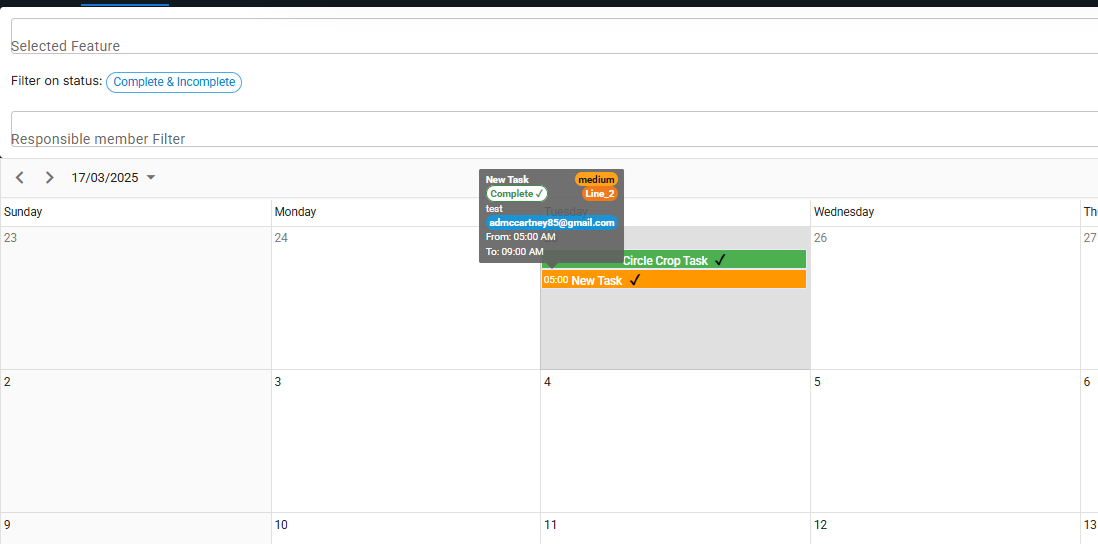
The Calendar view provides a visual representation of tasks and events over time, helping you plan your schedule effectively.
Tasks
Tasks are actionable items within your workspace. Use the Planner to create, assign, and track tasks for your team.
Task Management
Manage tasks by creating, assigning, and tracking their progress. Use the Planner to keep your team organized.
Task Filters
Filter tasks based on criteria such as due date, priority, or assignee to focus on what matters most.
Workspace Settings
The Settings panel allows you to configure workspace options, manage members, and adjust permissions. Access it via the Settings icon.
Workspace Details
View and edit workspace details such as name, description, and settings.
Export options
From the settings panel you can export your workspace as a PNG image, download a JSON file (future development is to restore from JSON), or create a snapshot of the Layout which can be publicly accessed or embedded in your own website.
QR Codes
Scanning QR Codes
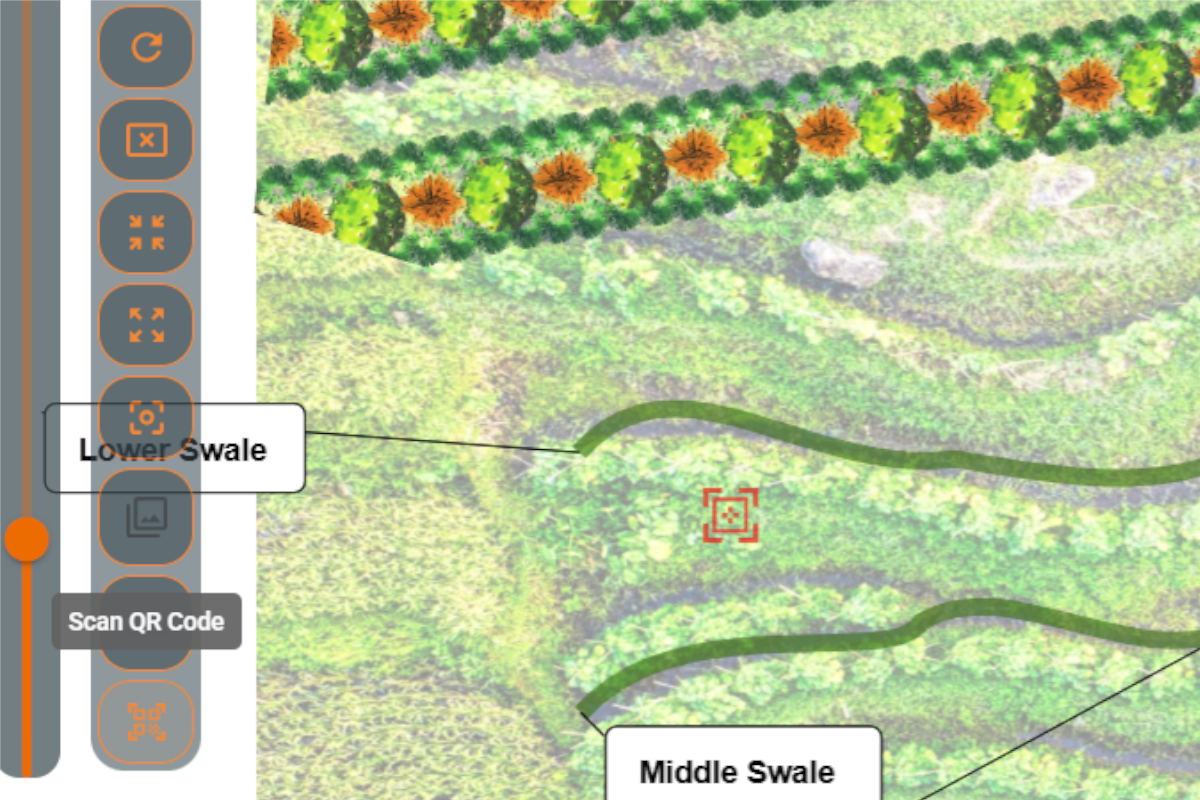
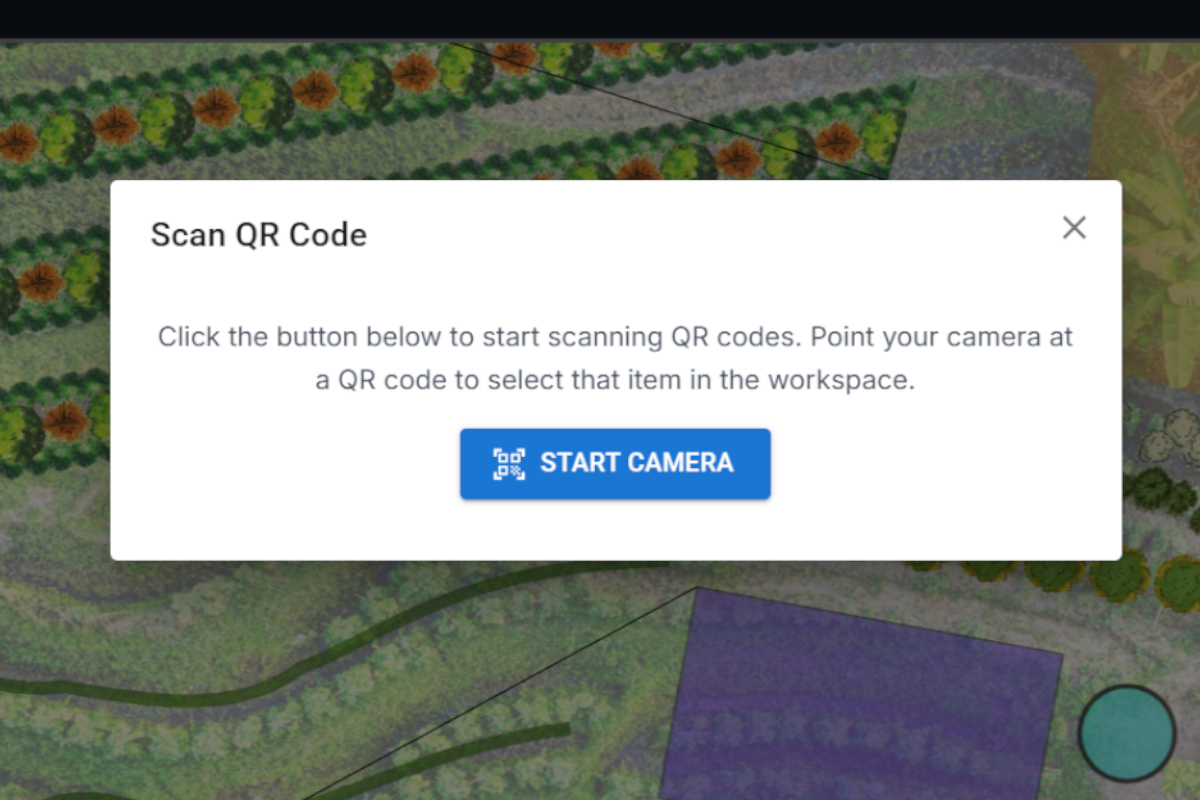
QR codes let you quickly identify features in the field using your phone or tablet camera. From the workspace Layout, tap the QR scanner button in the toolbar to open the scanner. Grant camera access when prompted, then point your camera at a printed QR code. Once detected, the scanner automatically closes, selects the associated feature on the canvas, centres the view on it, and opens the details panel so you can see its notes, tasks, and properties at a glance.
Creating QR Codes
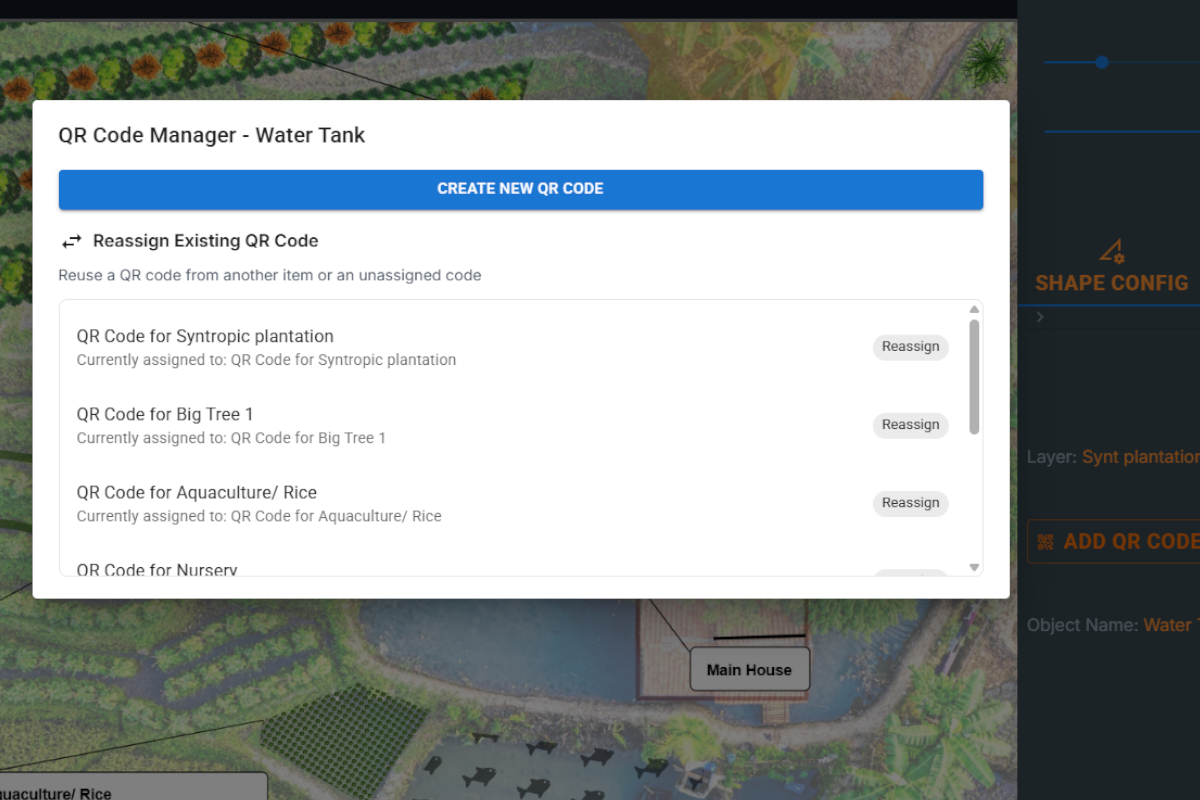
Any shape or line in the Layout can have a QR code assigned to it. Select the feature you want to label, then in the properties panel click 'Add QR Code'. In the QR Code Manager dialog choose 'Create New QR Code', give it an optional label (e.g. 'Fruit Tree Row A'), and click 'Generate & Assign'. The new code is immediately linked to the selected feature and ready to print.
Managing QR Codes
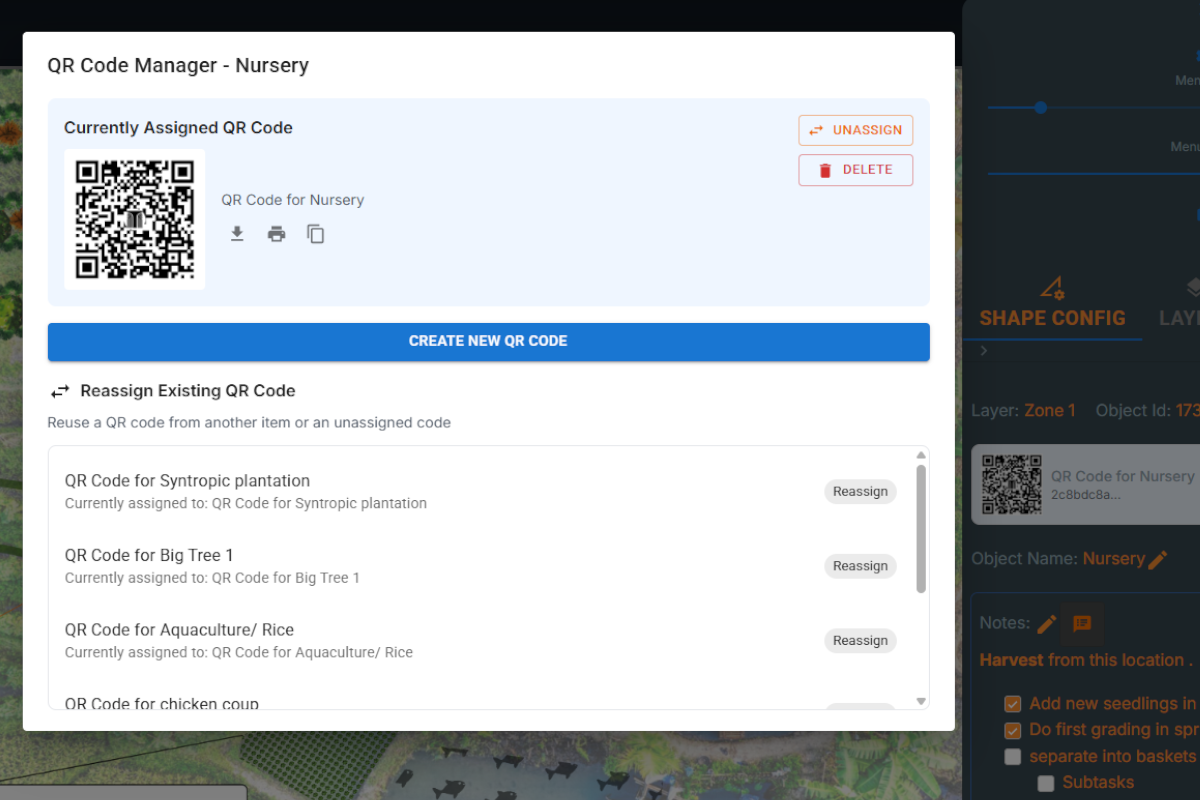
Once a QR code is assigned you can manage it from the same properties panel. A compact preview shows the code thumbnail and label. Click the edit button to open the QR Code Manager where you can download the code as a PNG image, copy the code ID, reassign the code to a different feature, unassign it entirely, or delete it permanently. You can also reassign an existing unassigned code to a new feature instead of creating a fresh one.
Printing QR Codes
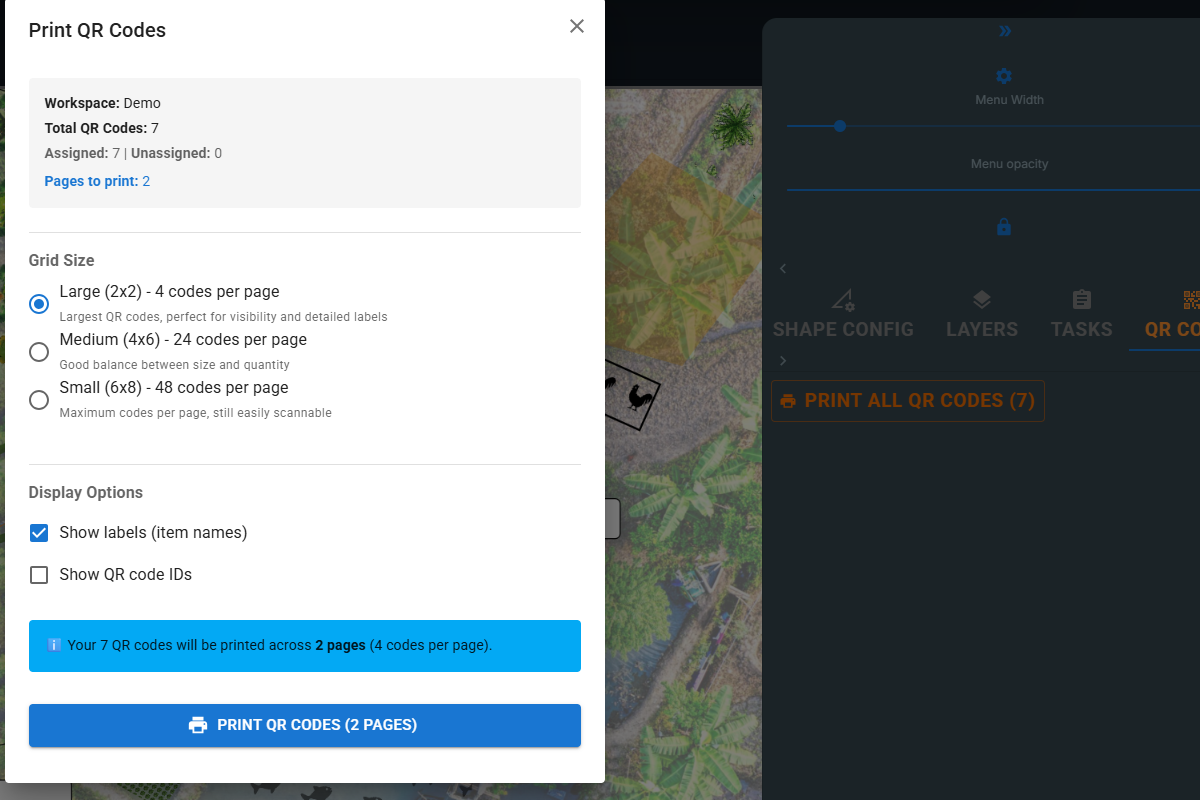
To take your QR codes into the field, use the batch print feature. From the workspace settings or QR code panel, click 'Print All QR Codes' to open the print configuration. Choose a grid size — Large (2×2, 4 per page) for big labels, Medium (4×6, 24 per page) for general use, or Small (6×8, 48 per page) for compact reference sheets. Toggle whether to show labels and code IDs, then print directly or save as PDF. You can also print a single QR code from the QR Code Manager dialog.
Quick Start Guide
Import Backgrounds
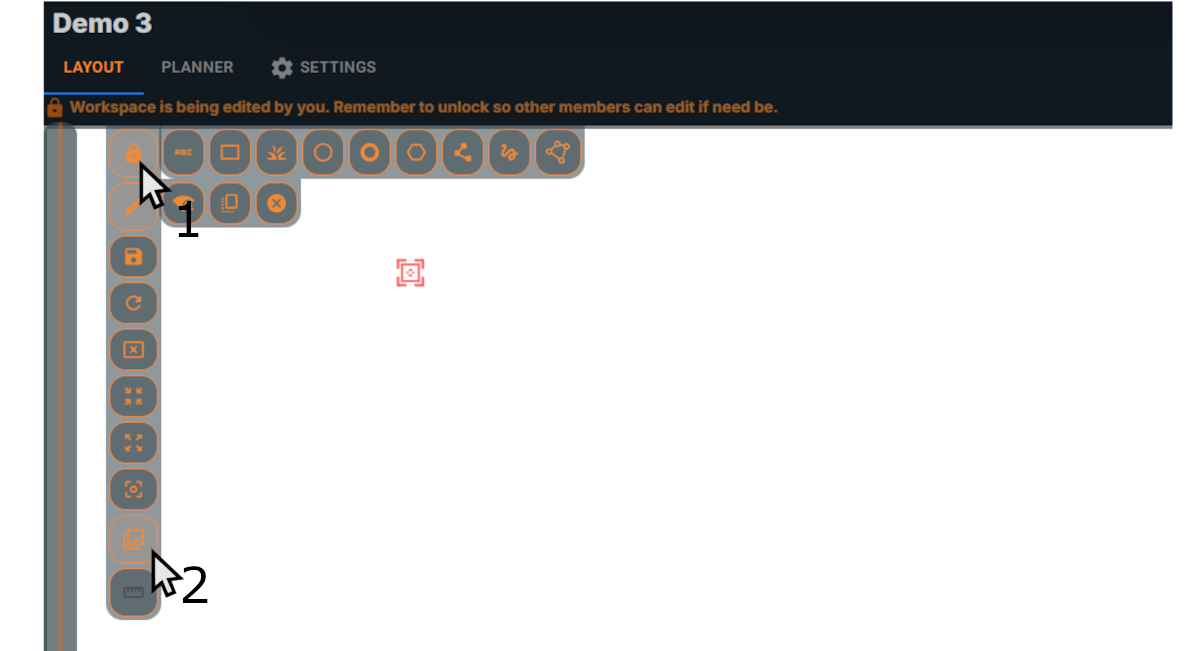
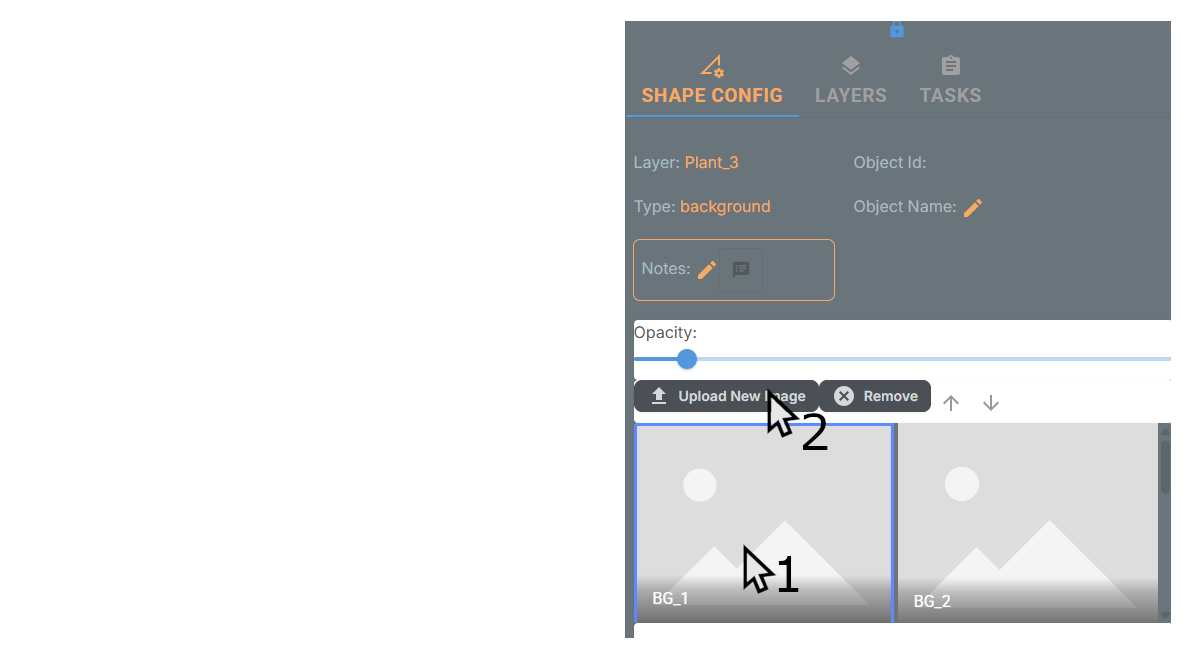
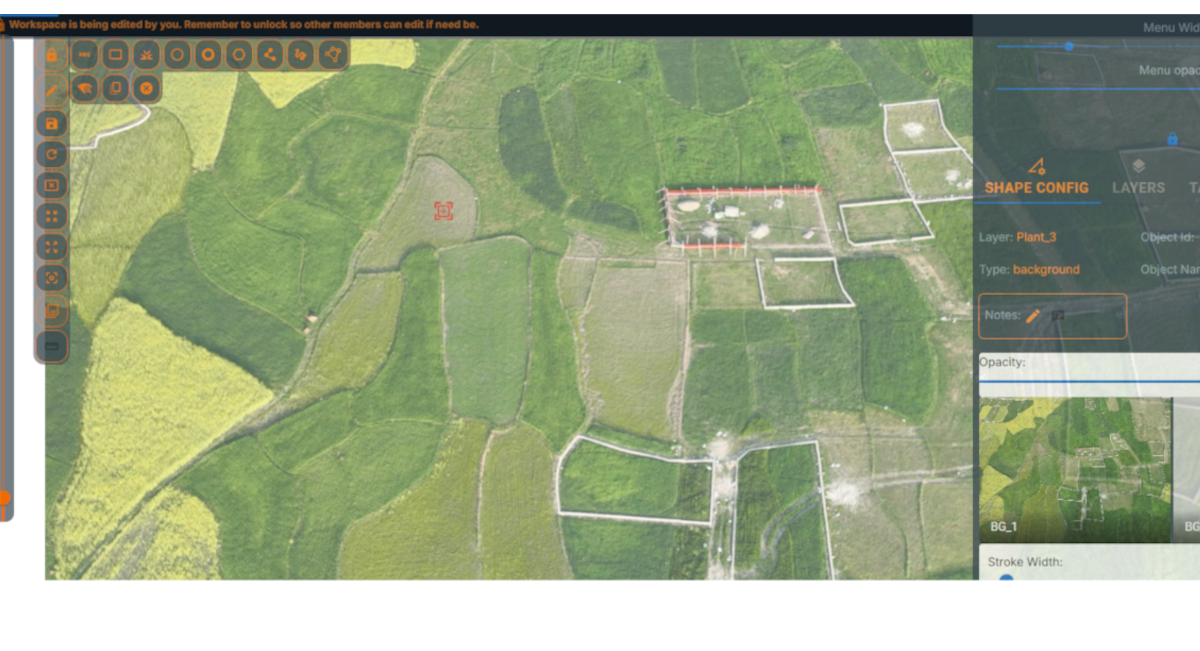
Once you have created a new workspace, begin by locking the workspace, and then toggle edit backgrounds background as pictured below. Within the 'Shape Config', select a background slot then use the 'Upload New Image' button to select an image file from your computer. The image will be uploaded and added to the centre of the workspace, you can save the workspace. You can also add multiple backgrounds and switch between them as needed. To edit the position of a background, select the background slot, you will then notice the transformer controls appear around the background image, you can then drag, resize or rotate the image to the desired position and save the workspace.
Add/edit Text
The workspace should already be locked to you, if not lock the workspace. Toggle the edit mode, this will reveal the range of text, shapes and lines that can be added. Click within the workspace until you see the red pointer, click the 'Add Text' to add a text box. You can then edit the text by selecting it, this will reveal the transformer controls around the text box, you can then drag, resize or rotate the text box to the desired position. To edit the text's properties, select it and use the 'Shape Config' panel, changing the name will change the text content, fill colour, stroke colour, font size and other font attributes.
Add/edit shapes
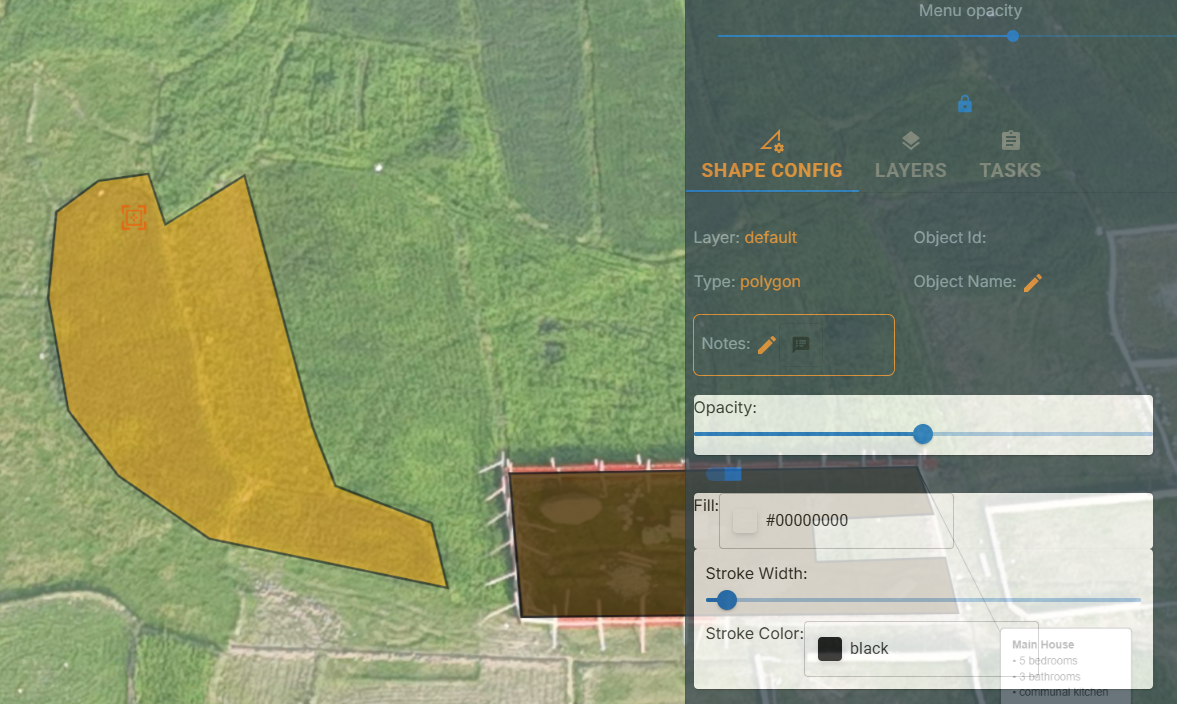
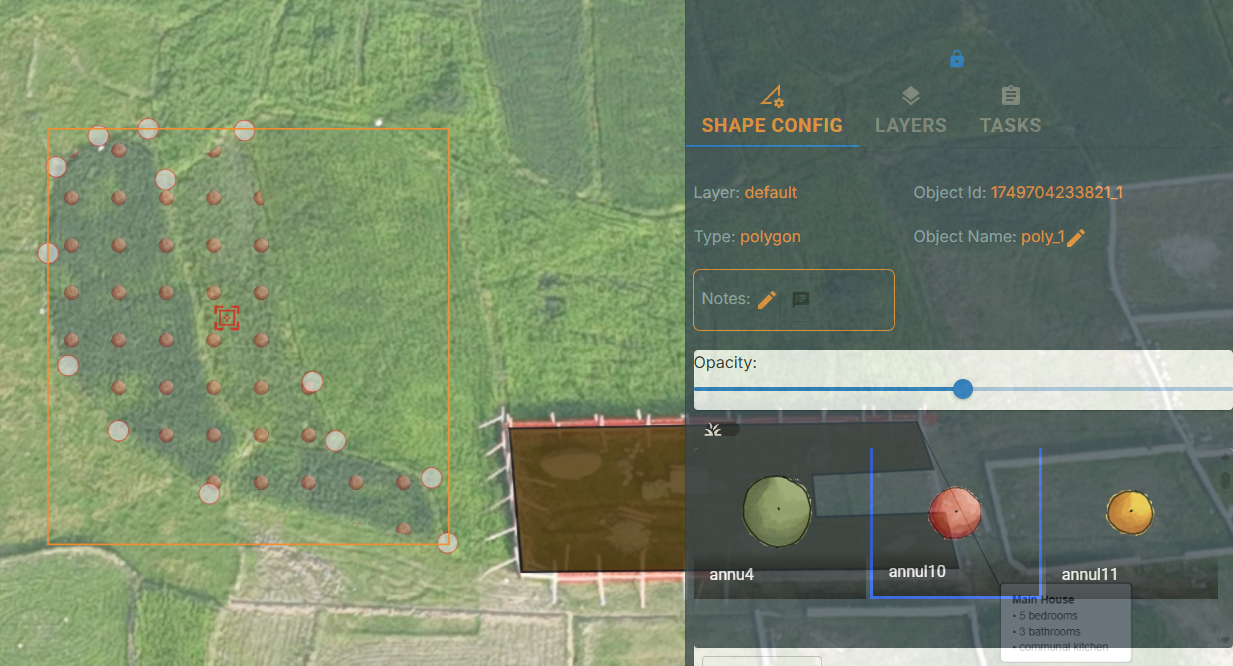
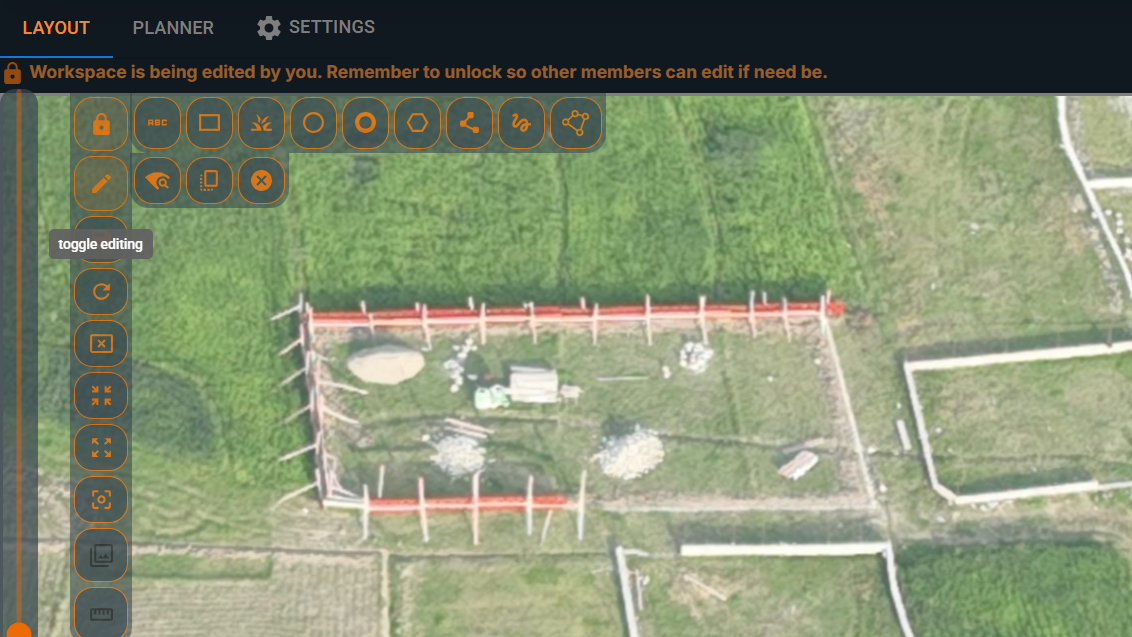
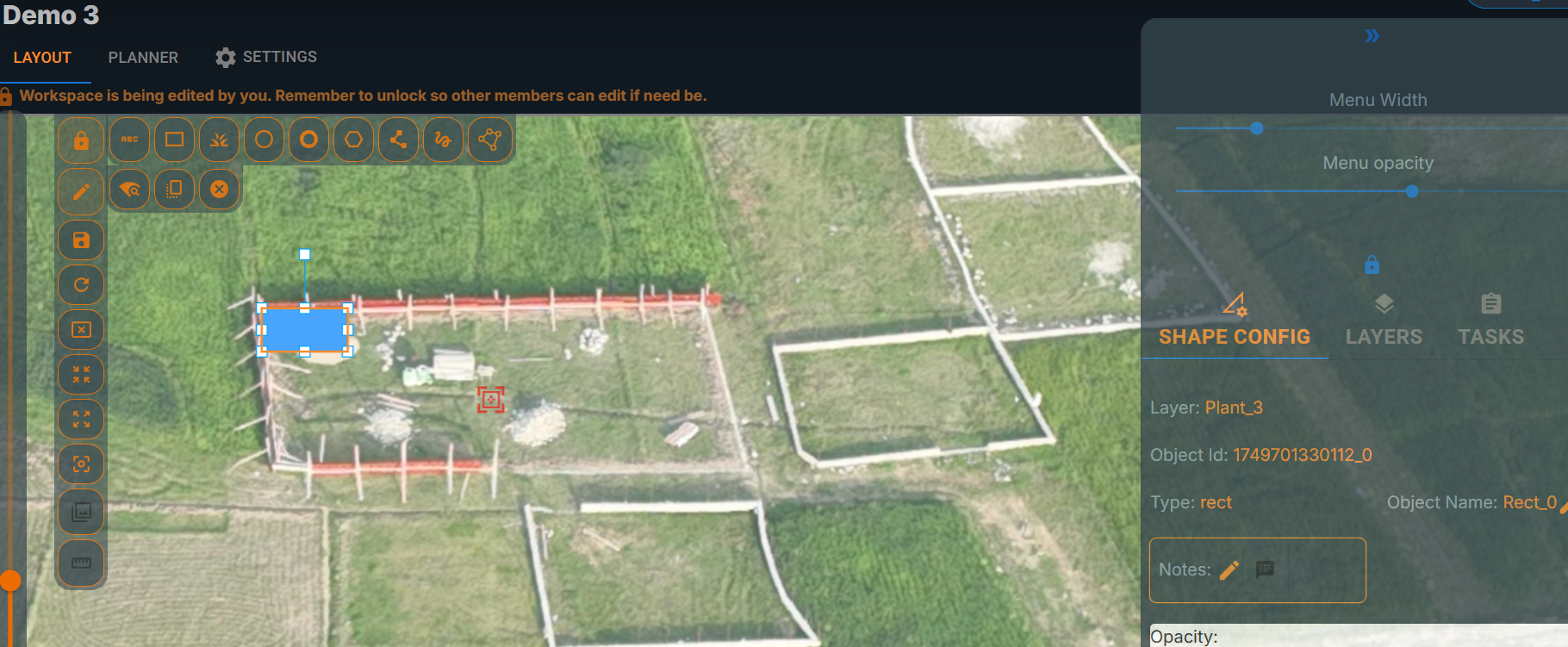
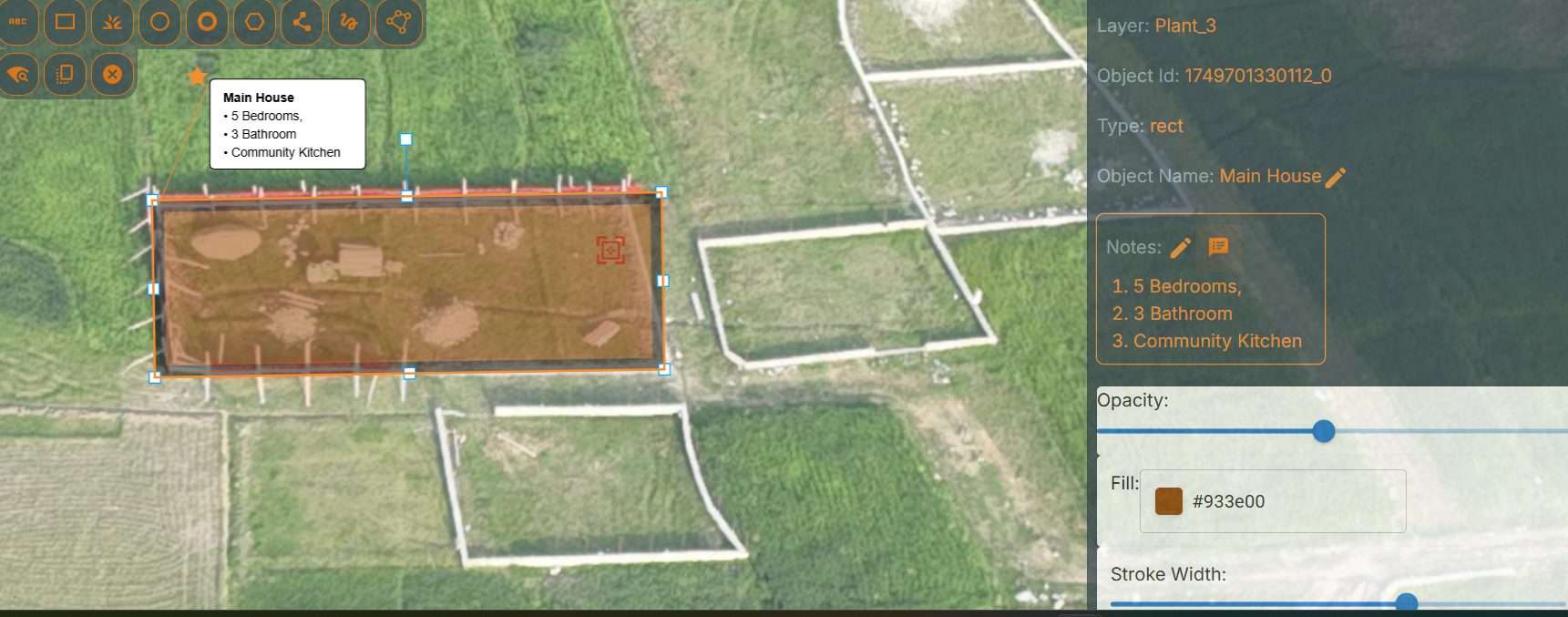
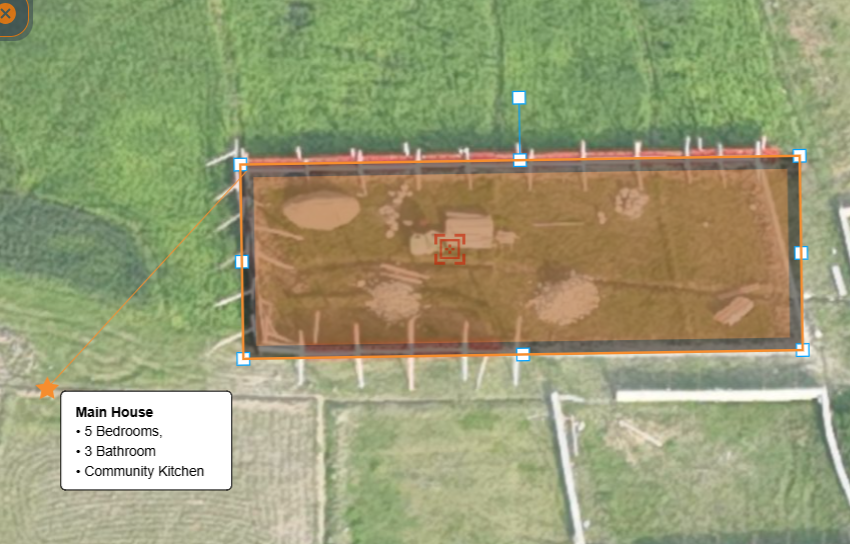
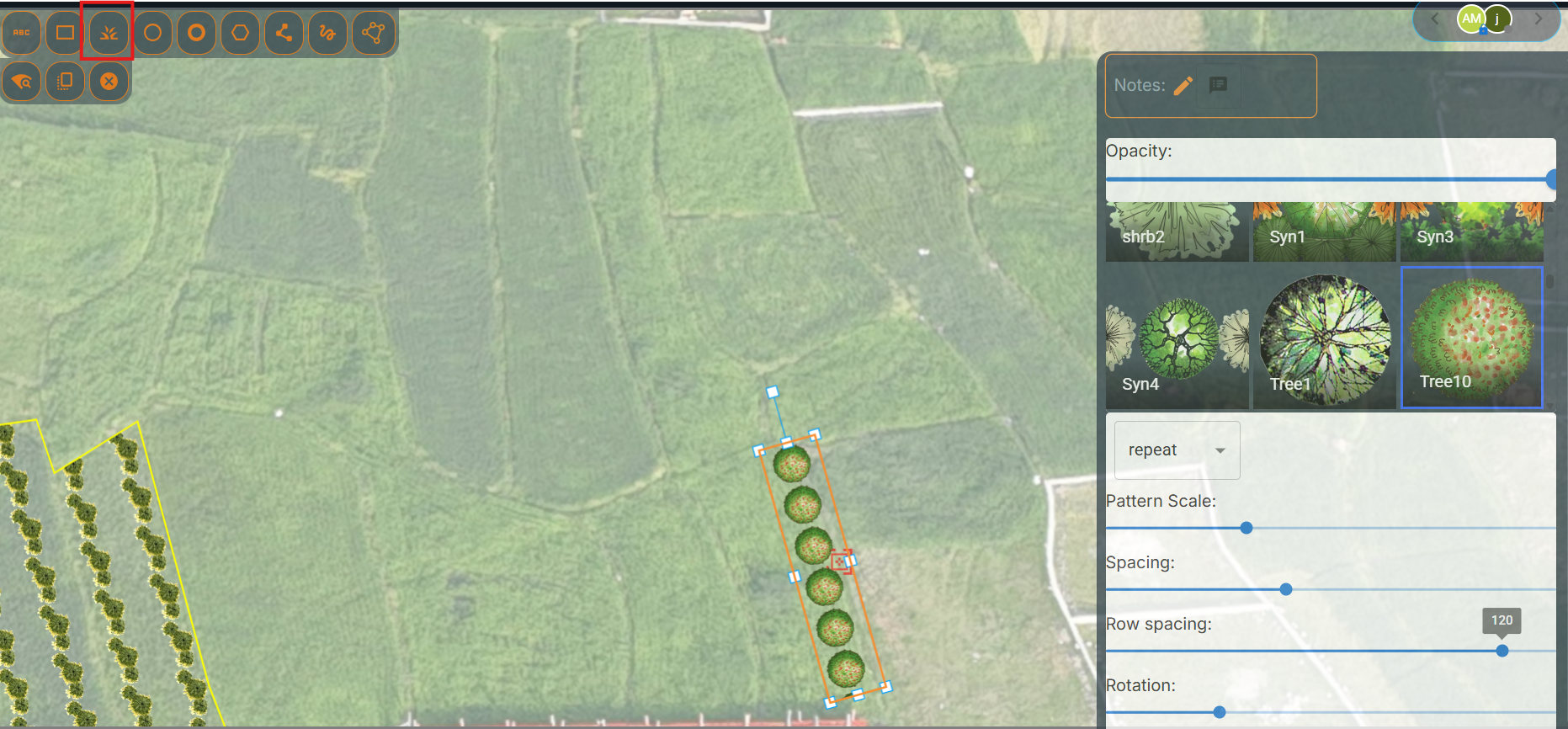
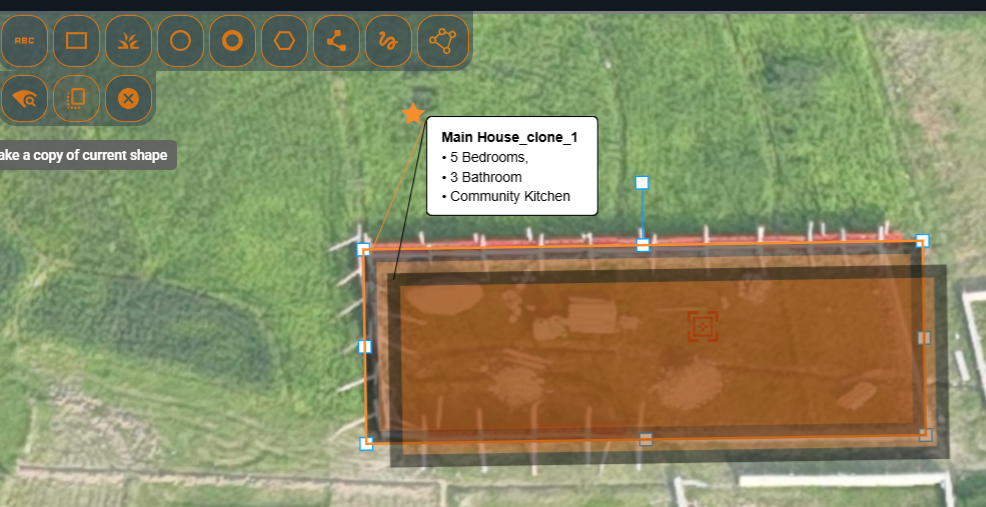
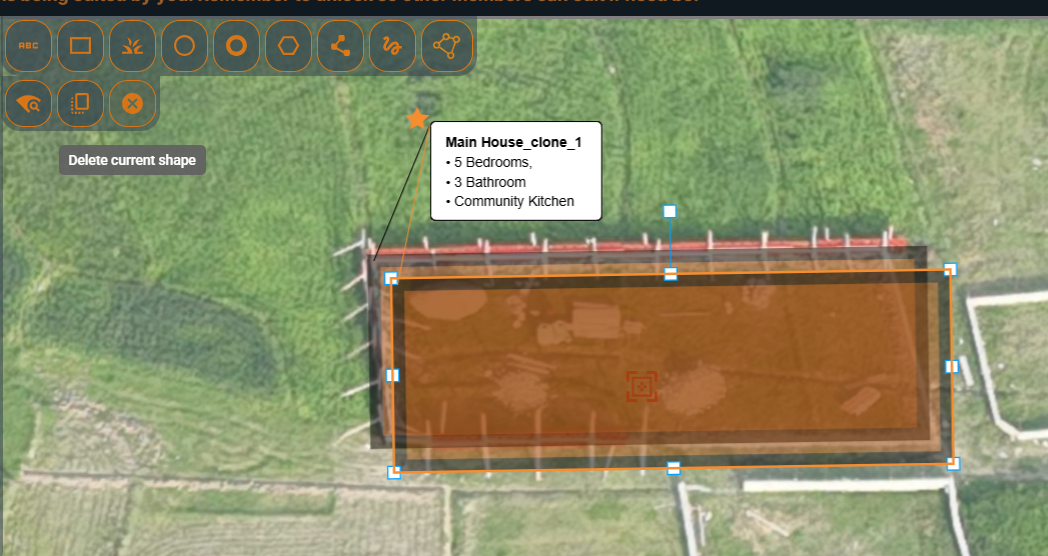
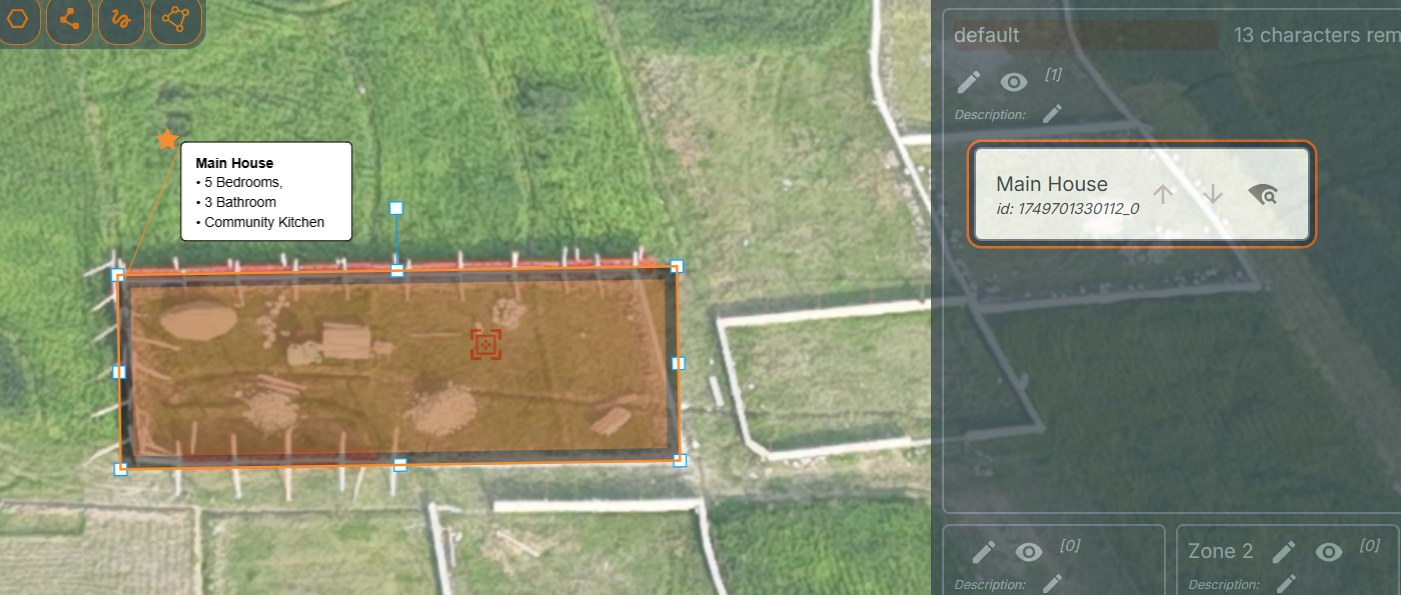
Click within the workspace to the position where you want to add a shape as indicated by the red pointer, then click on the 'create rectangle' button. Click on the newly created rectangle, this will reveal the transformer controls around the rectangle, you can then drag, resize or rotate the rectangle to the desired position. To edit the rectangle's properties, select it and use the 'Shape Config' panel to change its name, colour, and other attributes. You can also add notes or tasks associated with the rectangle. Once you are happy with the rectangle, save the workspace. You can also add other shapes such as circles, rings regular and polygons. Note callouts can be added to any shape or line, within the 'Shape Config' enter notes text and then toggle the callout button. Callouts will appear as a line with a text box attached to the shape or line, you can drag the callout to reposition it by first selecting the parent shape or line. A special rectangle shape is available for planting, this will allow you to add a rectangle that can be used to represent a planting area. The rectangle will have a special configuration panel that allows you to set the plant type, spacing, and other attributes.
Add/edit lines
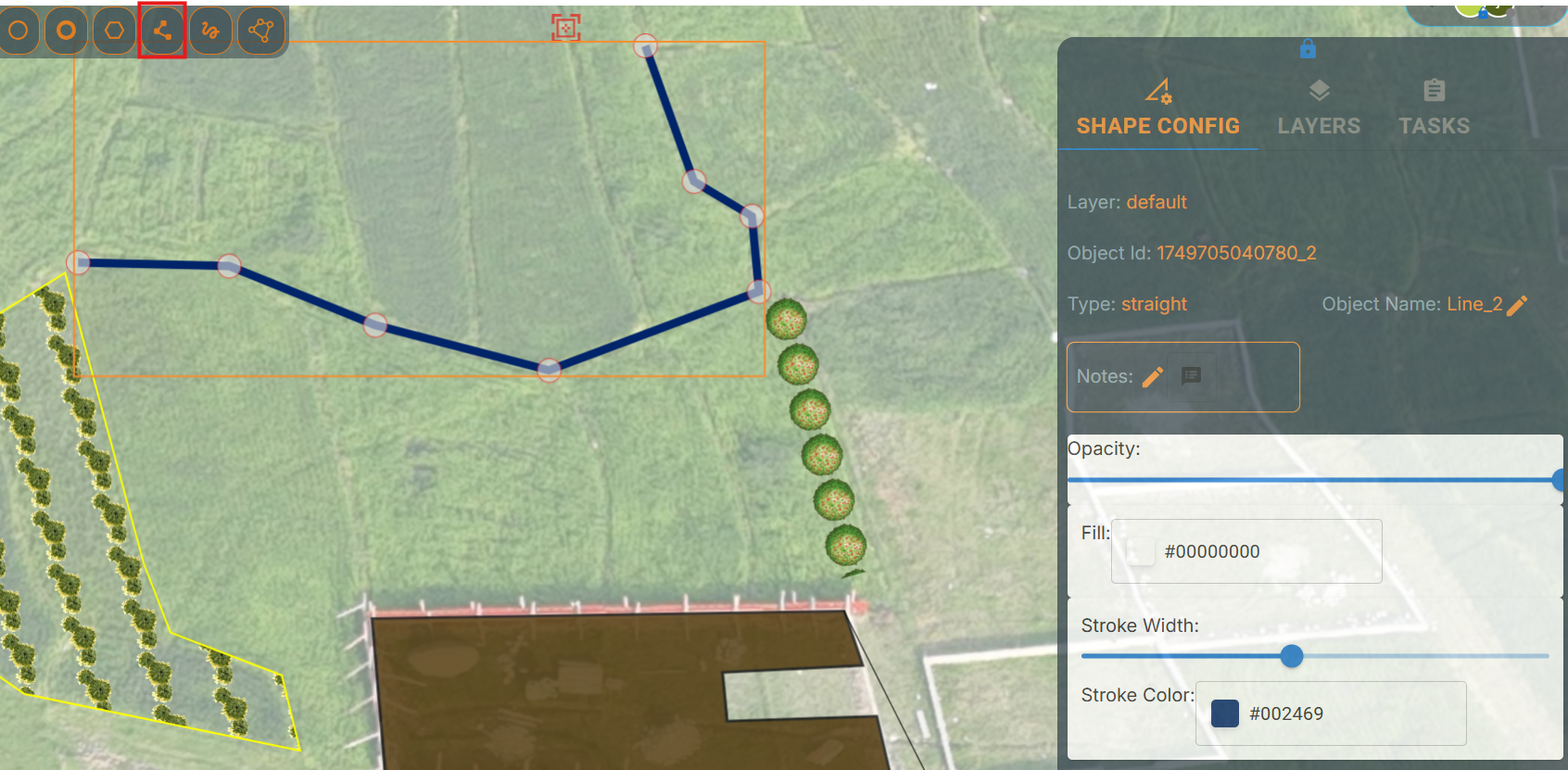
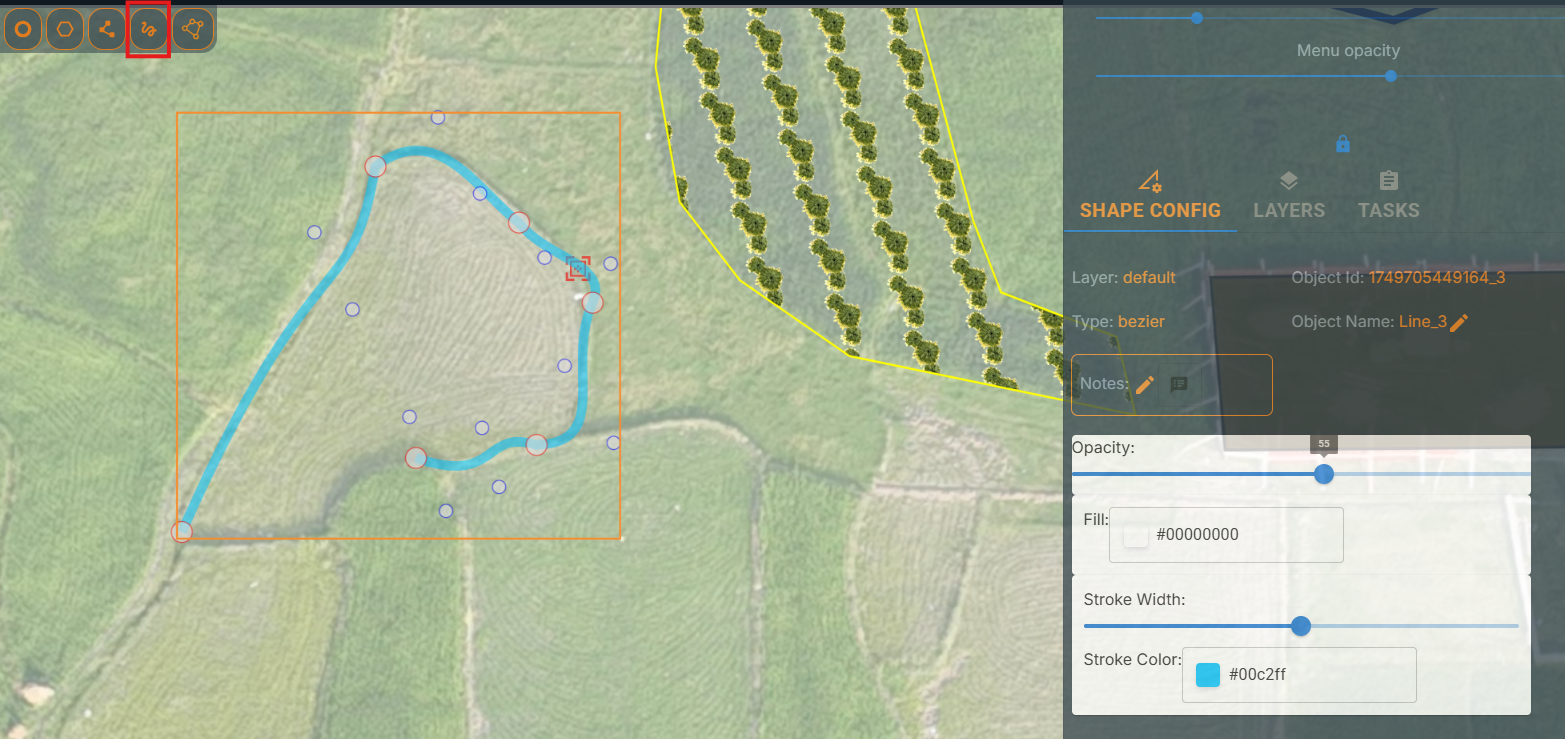
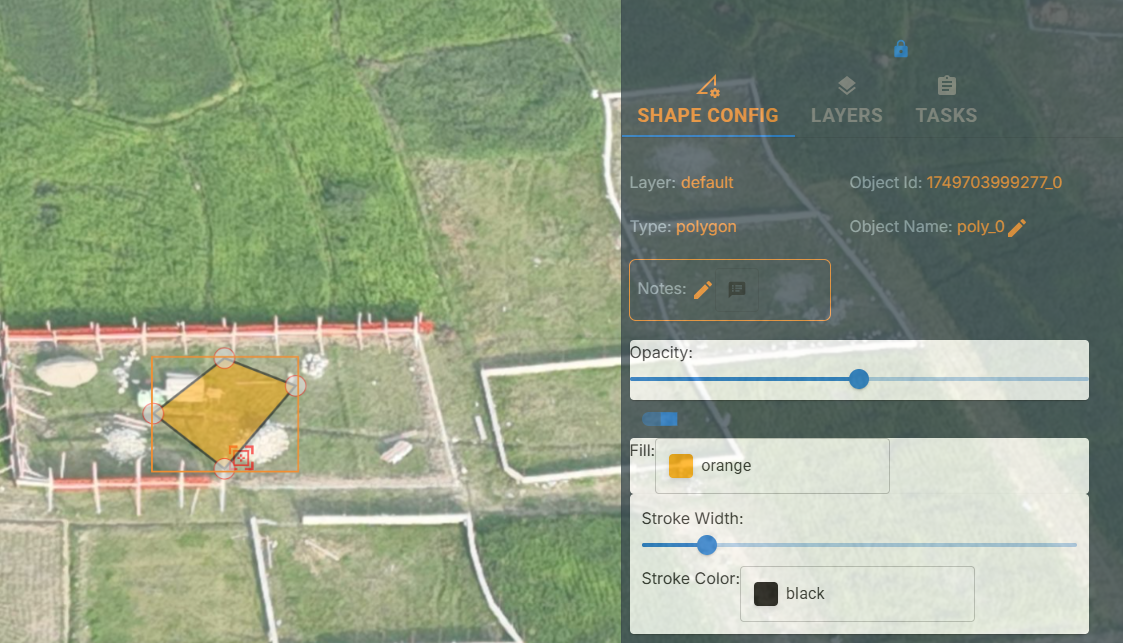
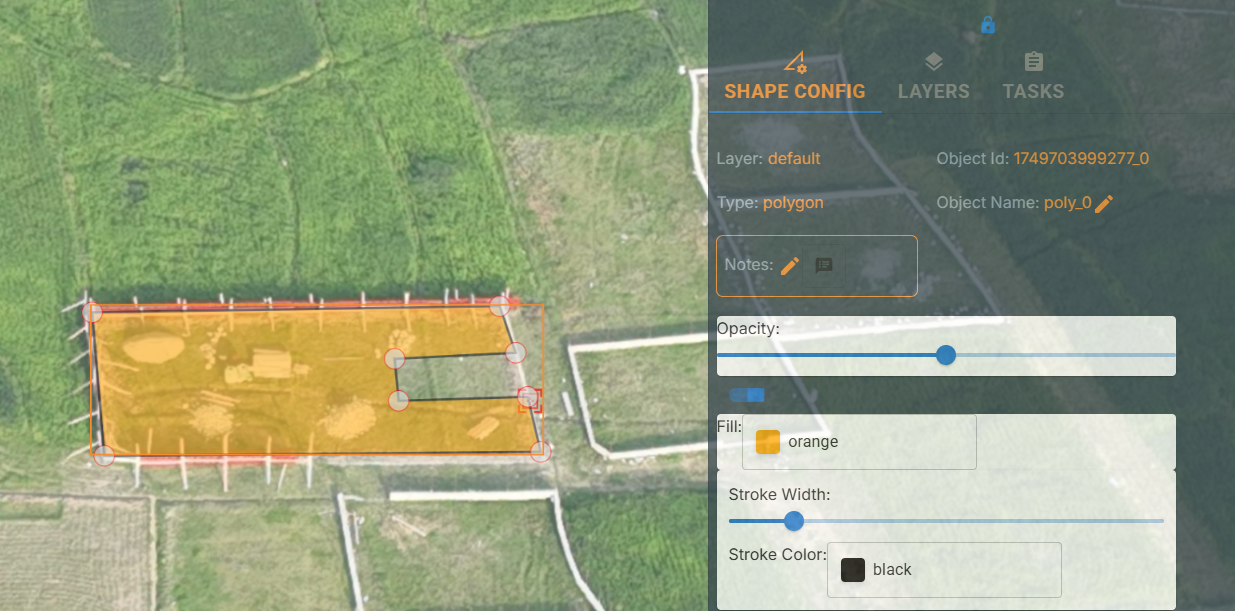
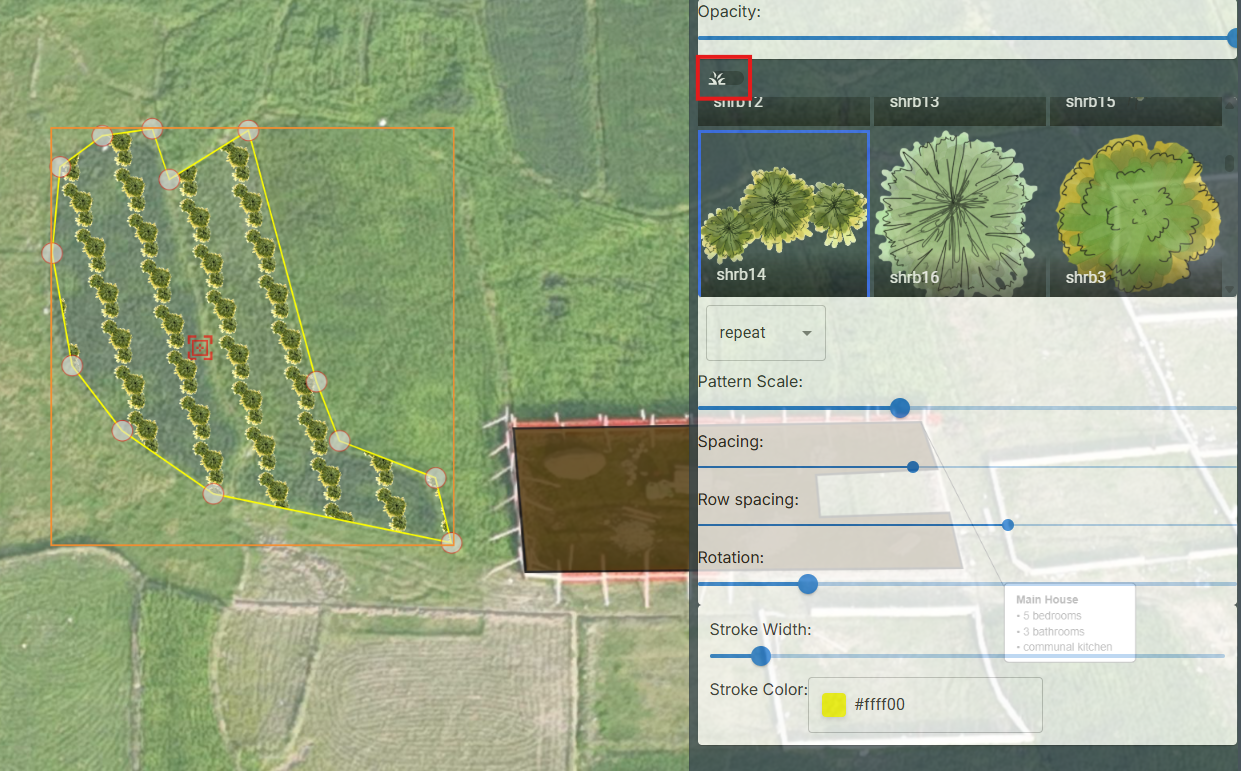
There are three types of lines that can be added to the workspace: straight, curved, and polygons. To add a line, first toggle the edit mode, then click within the workspace to the position where you want to start the line as indicated by the red pointer. Click on the 'Add Line' button, this will create a straight line from the starting point to the current mouse position. You can then drag the end points of the line to adjust its length and angle. To edit the line's properties, select it and use the 'Shape Config' panel to change its name, stroke colour and stroke thickness. Extra points can be added to the lines by double clicking an existing point, then drag the newly created point. For curved lines there are smaller points that help change the shape of the curve. Polygons can be filled with solid colours or with plant patterns, similar to the rectangle plant shape. You can also add notes or tasks associated with the line. Once you are happy with the line, save the workspace.